Make a sale
Before you start, make sure today's rates are locked and your shift is open.
1. Press New sale
Go to Counter → Sales and press New sale.
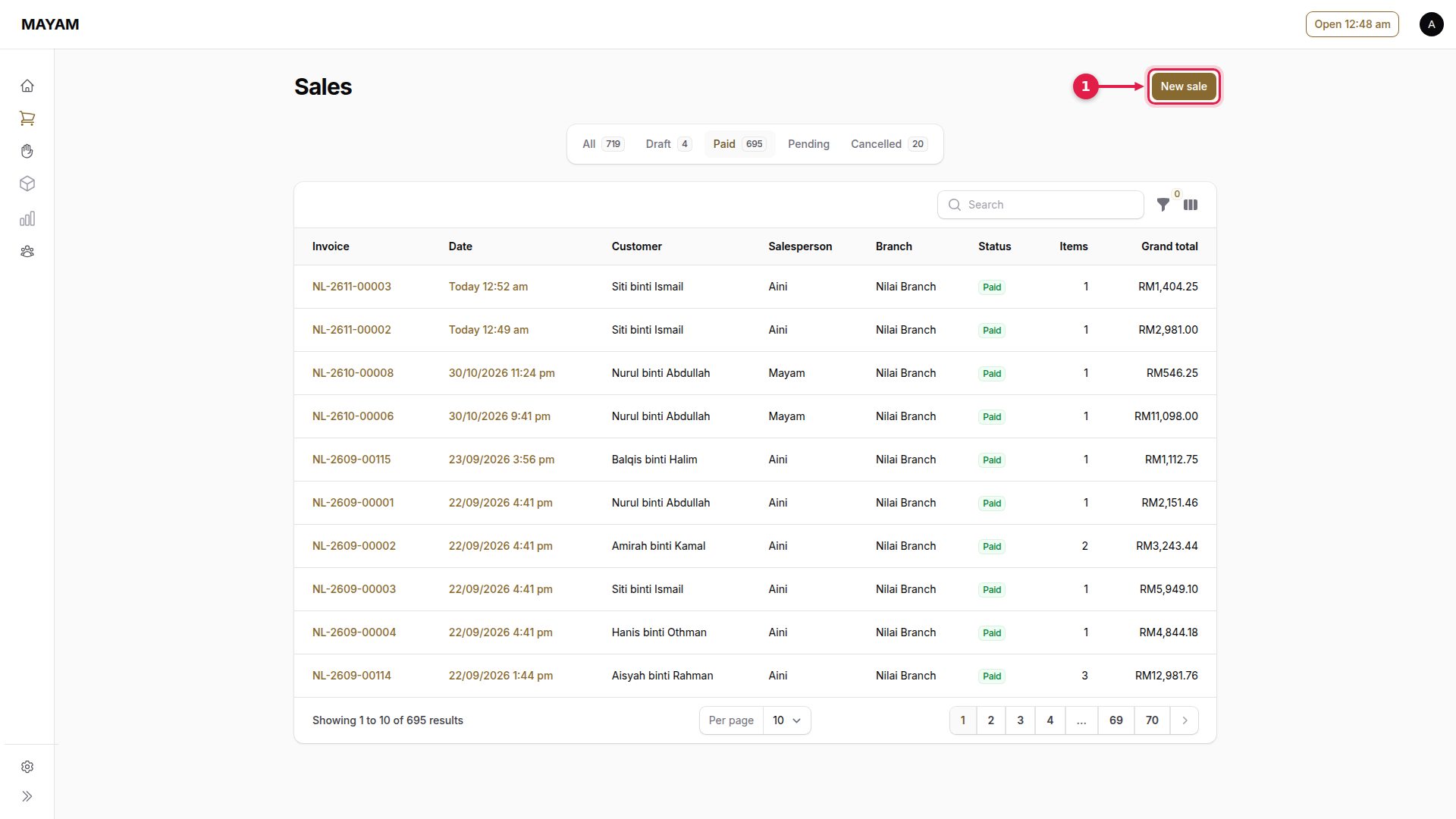
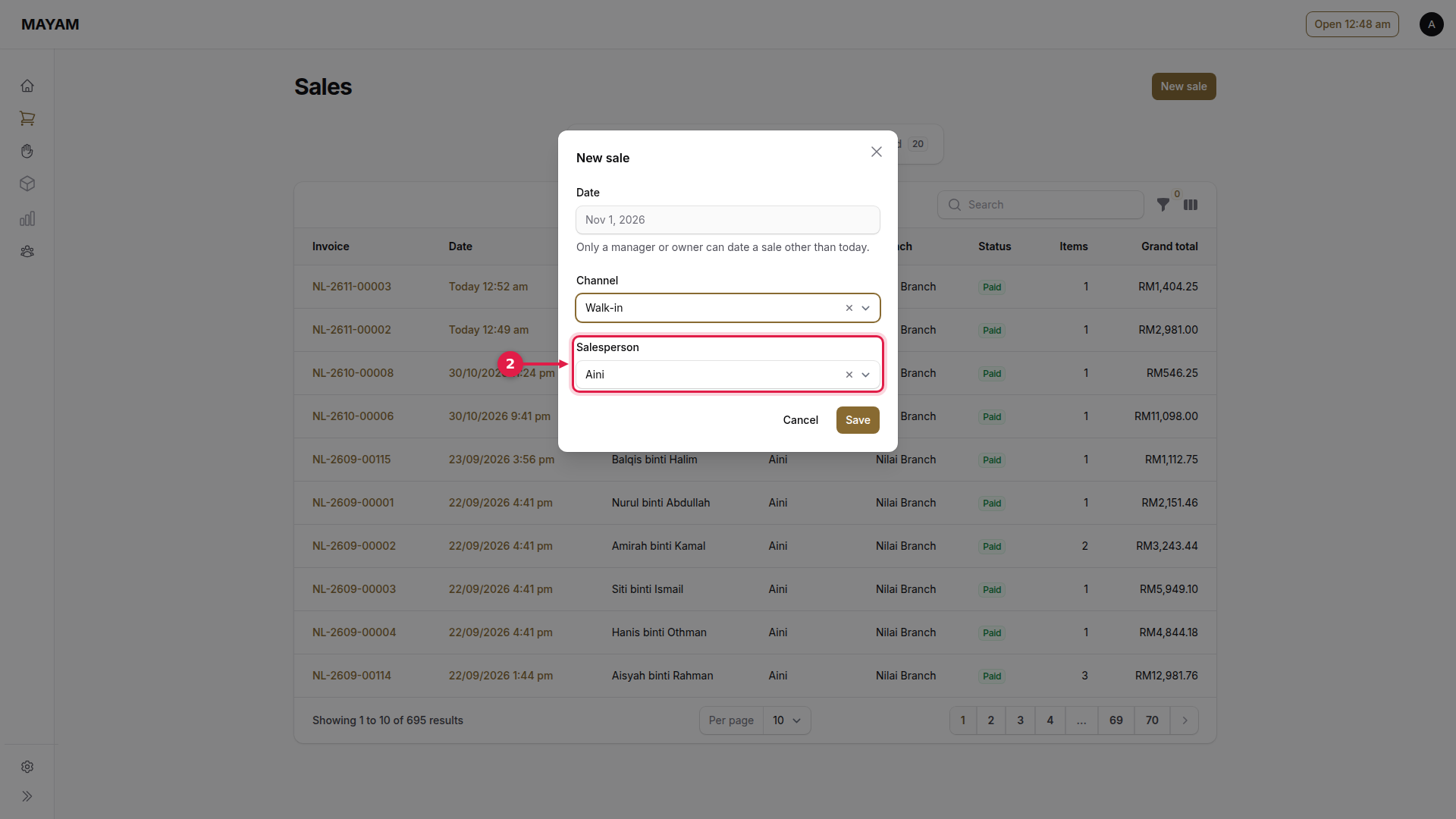
2. Choose the salesperson
Pick who is serving the customer; at a counter login, enter their PIN. Channel is Walk-in, or Online for a sale that is posted. Only a manager can set a date other than today.
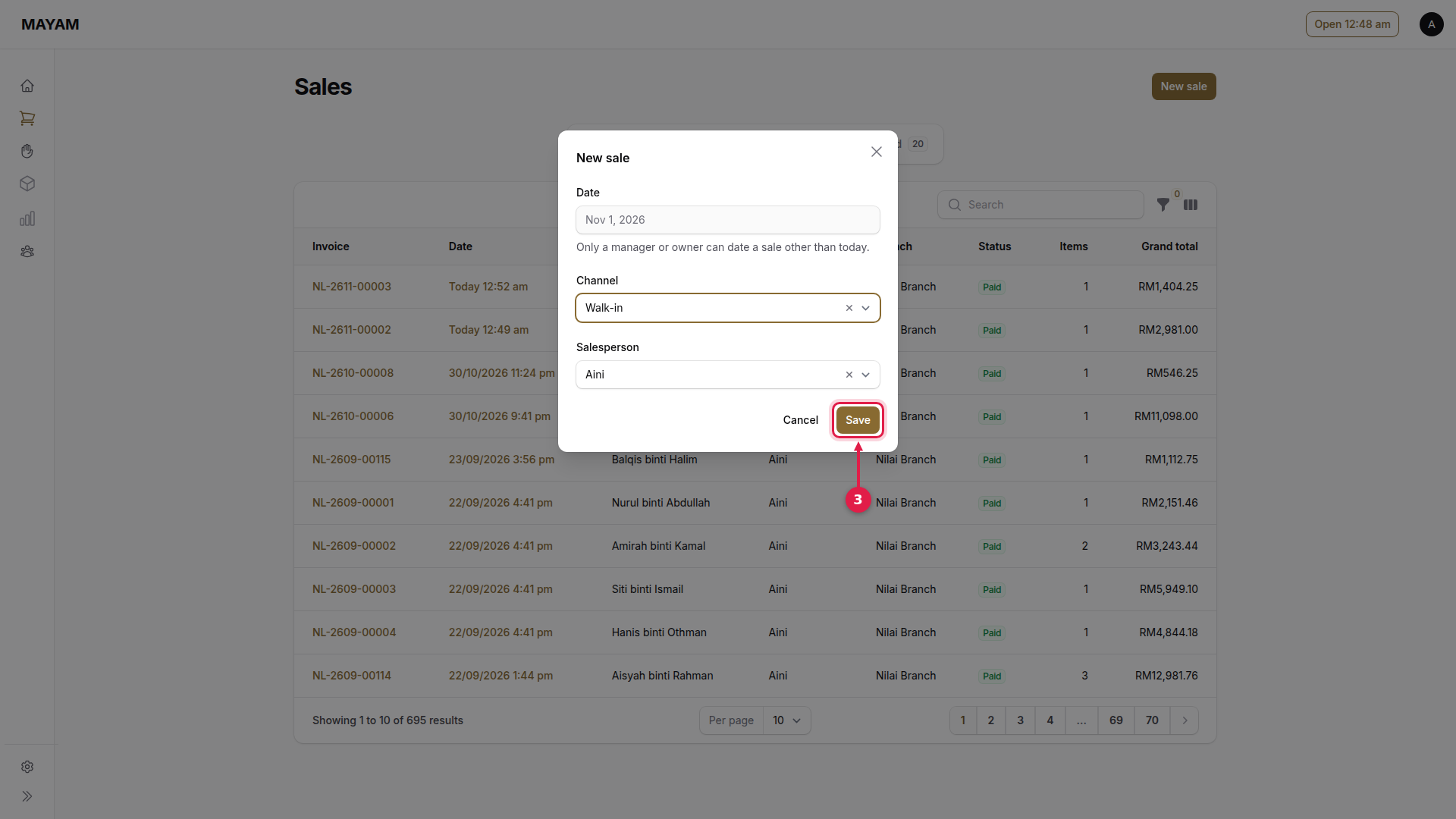
3. Press Save
The sales counter opens.
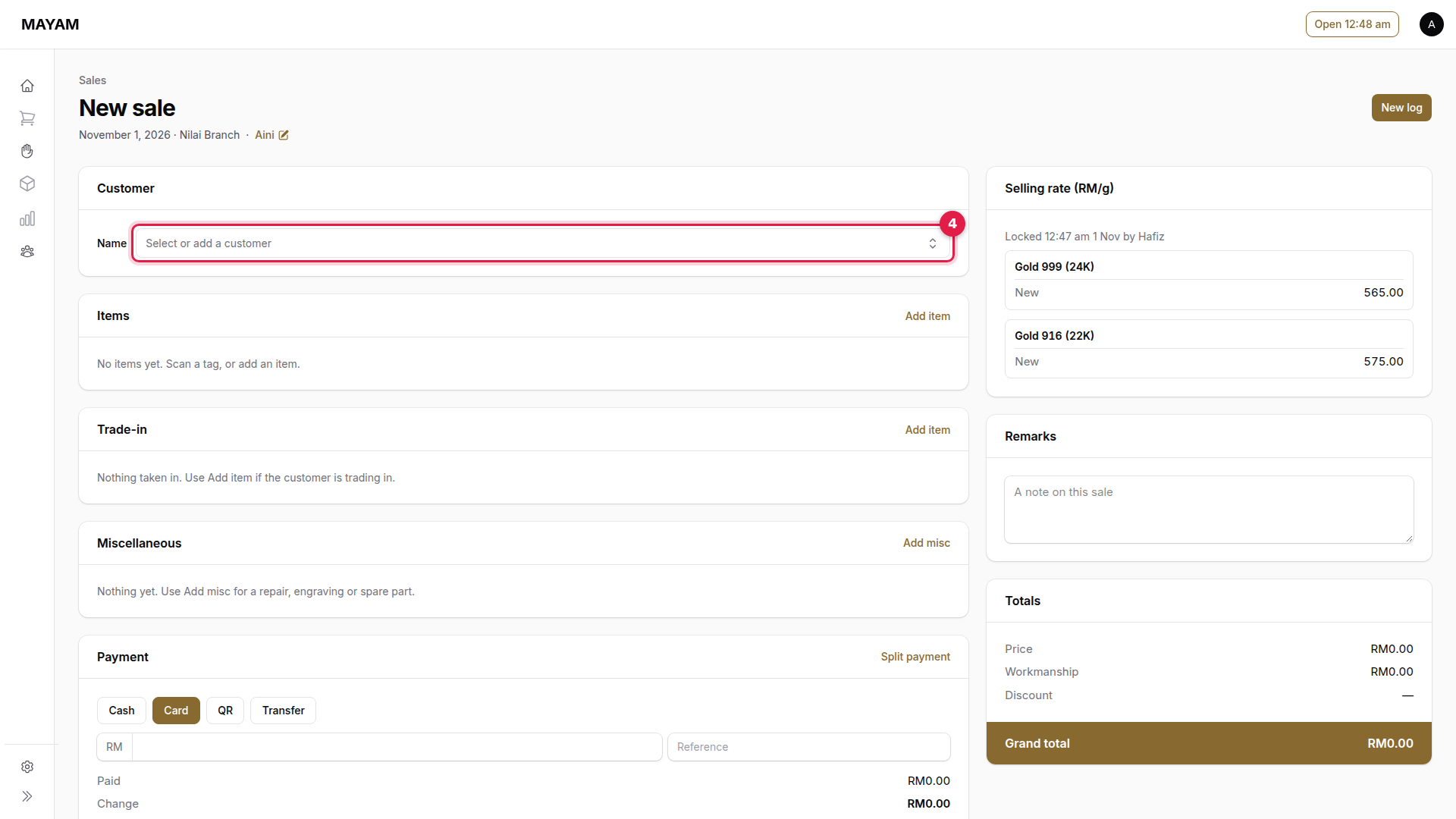
4. Press the Name box
Every paid sale needs a customer.
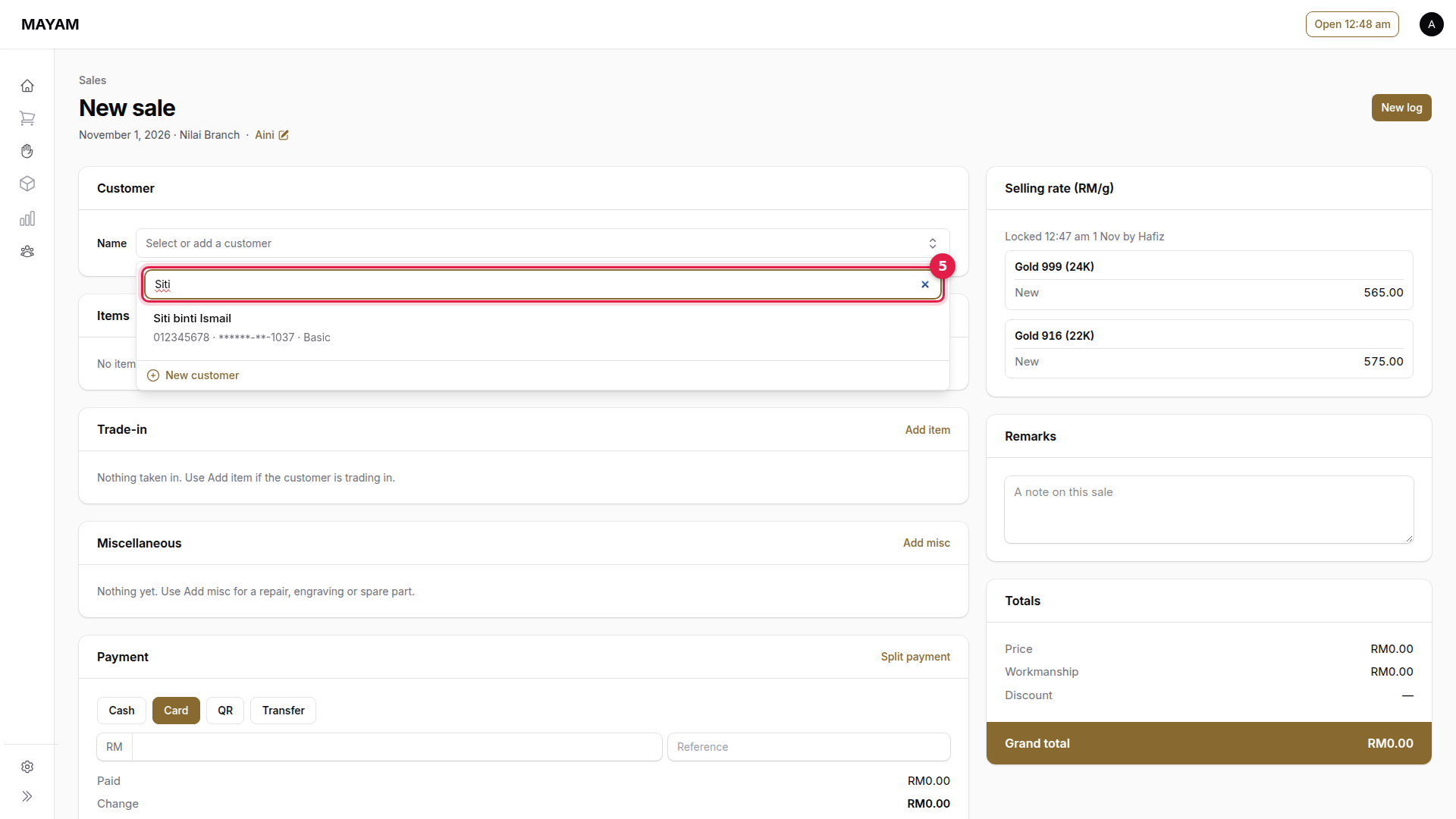
5. Search for the customer
Type their phone number, IC or name. For someone new, press New customer.
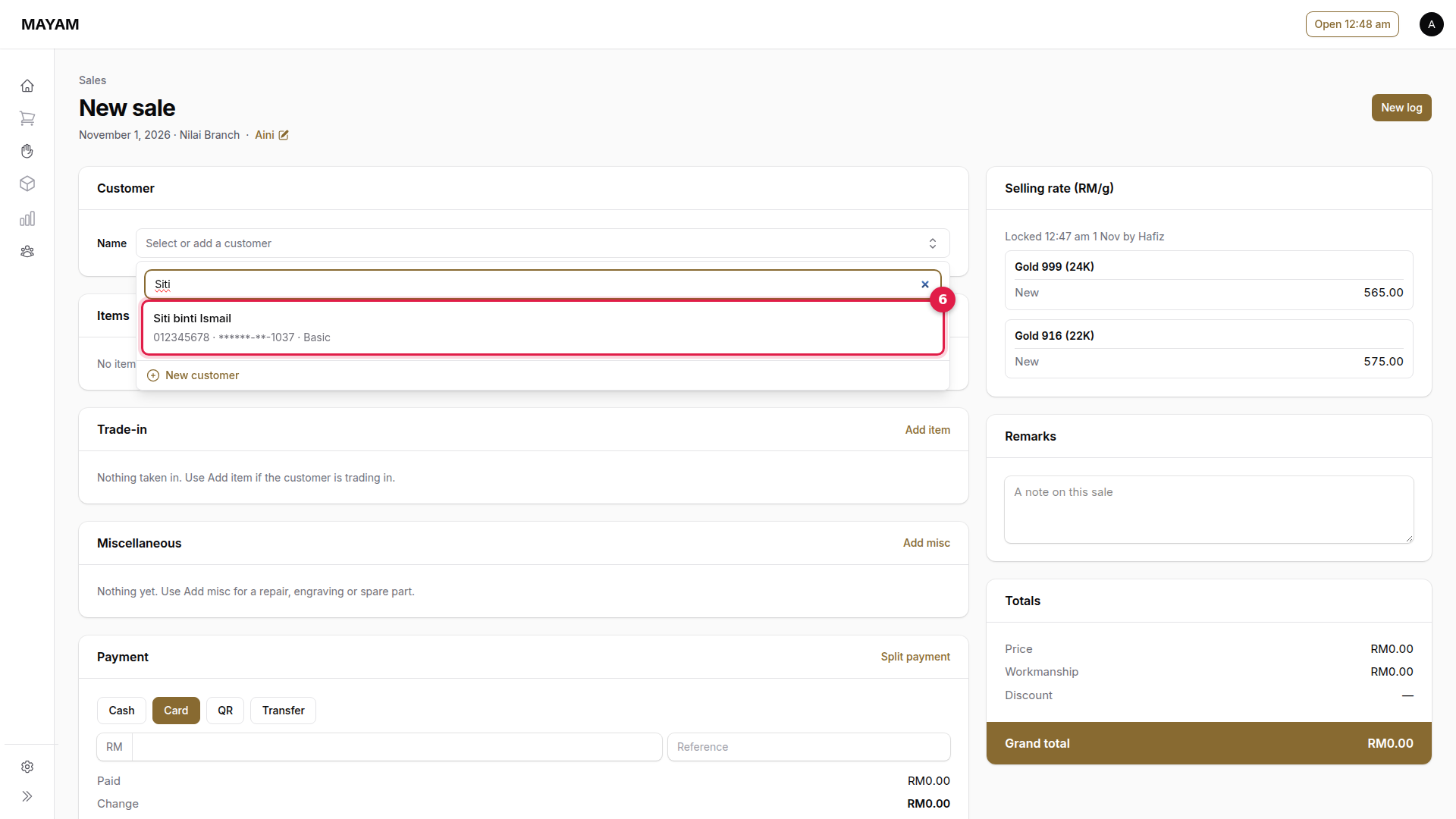
6. Pick the customer
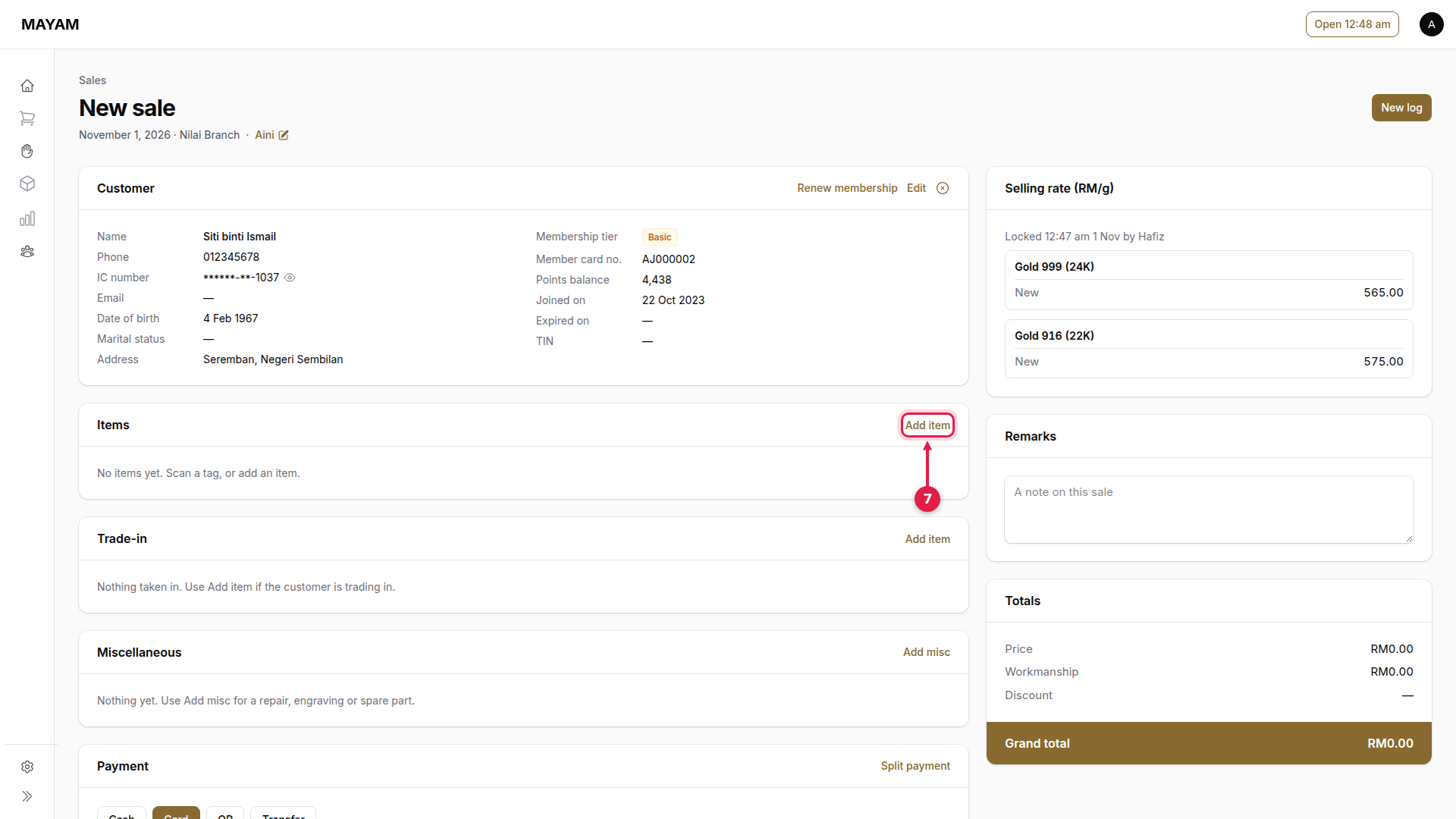
Their details, tier and points appear. The IC stays masked; the eye icon shows it for this sale only.
7. Press Add item
Or simply scan the piece's tag.
8. Type or scan the SKU
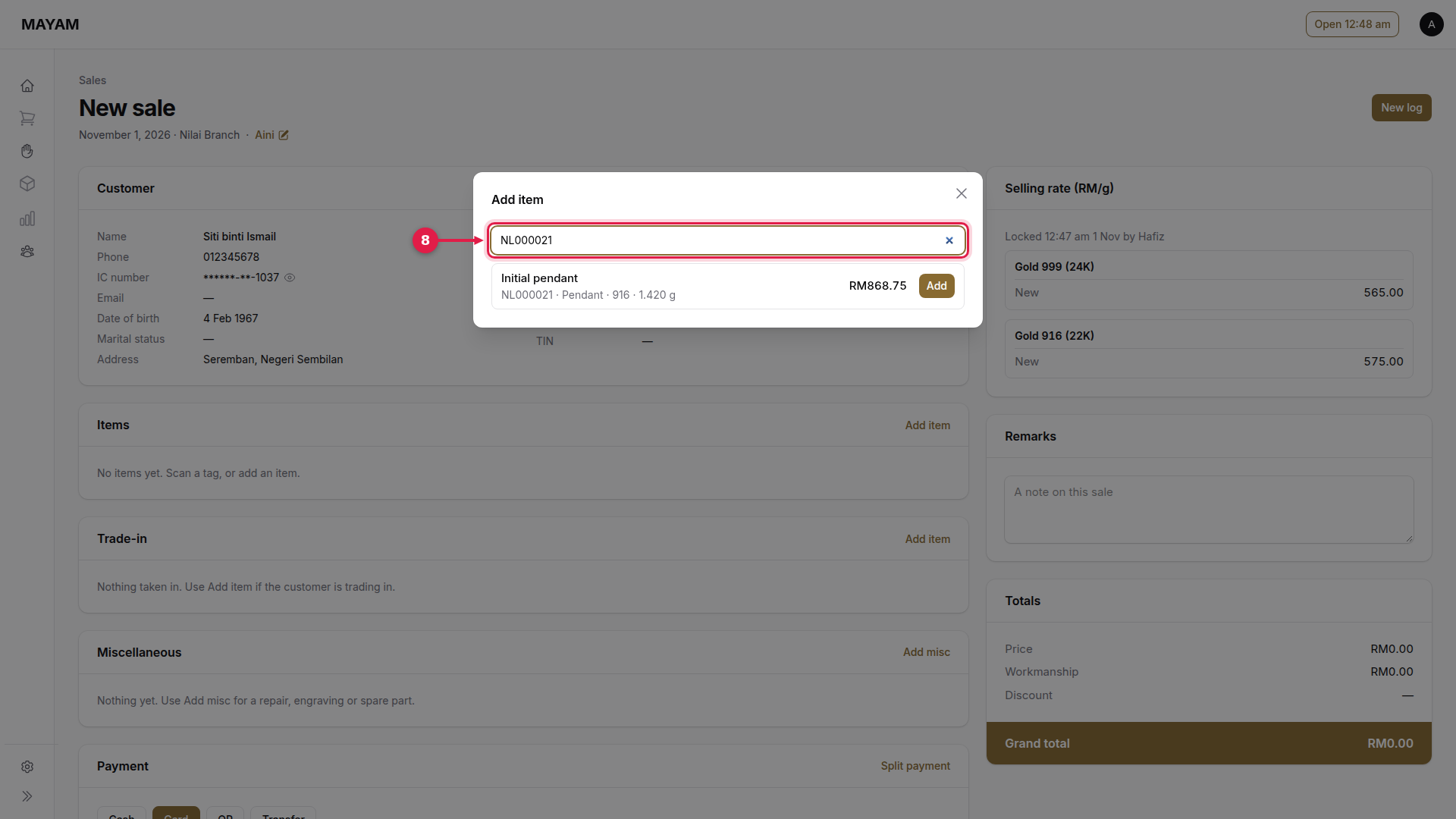
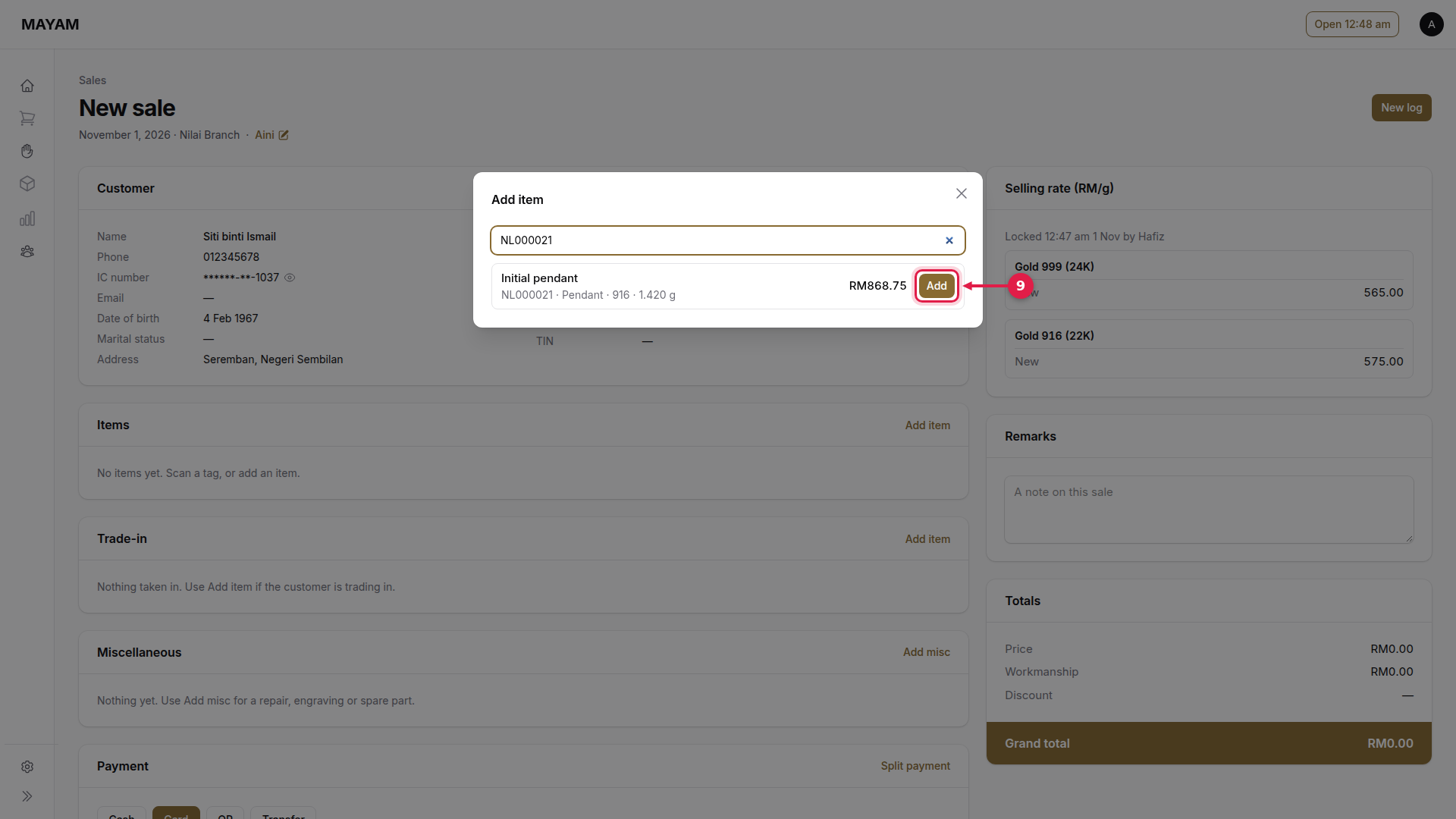
9. Press Add
The piece is priced from today's rate and its weight; its workmanship follows the customer's tier. Repeat steps 7 to 9 for each piece.
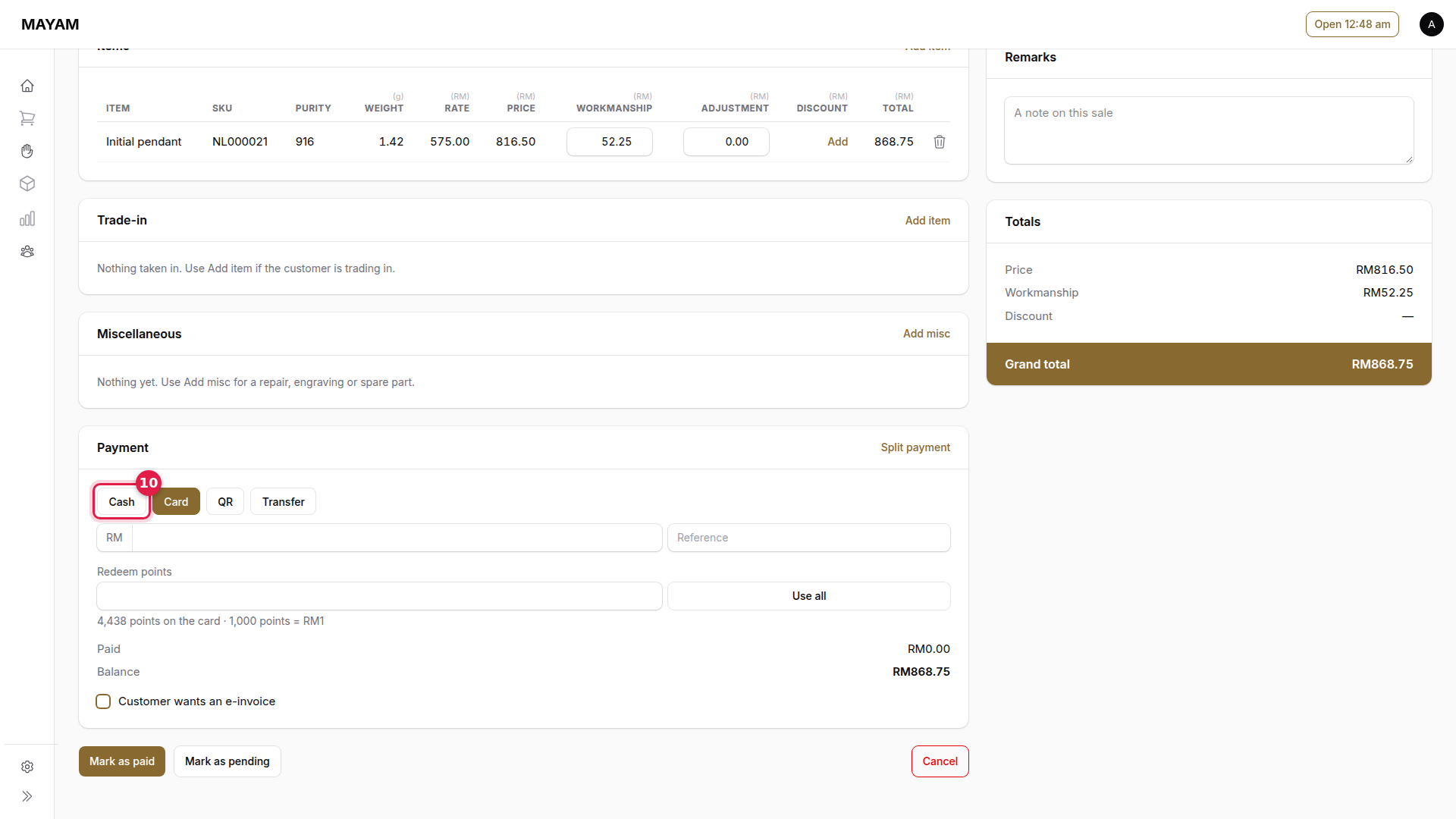
10. Choose how the customer pays
Cash, Card, QR or Transfer. Use Split payment when the customer pays two ways.
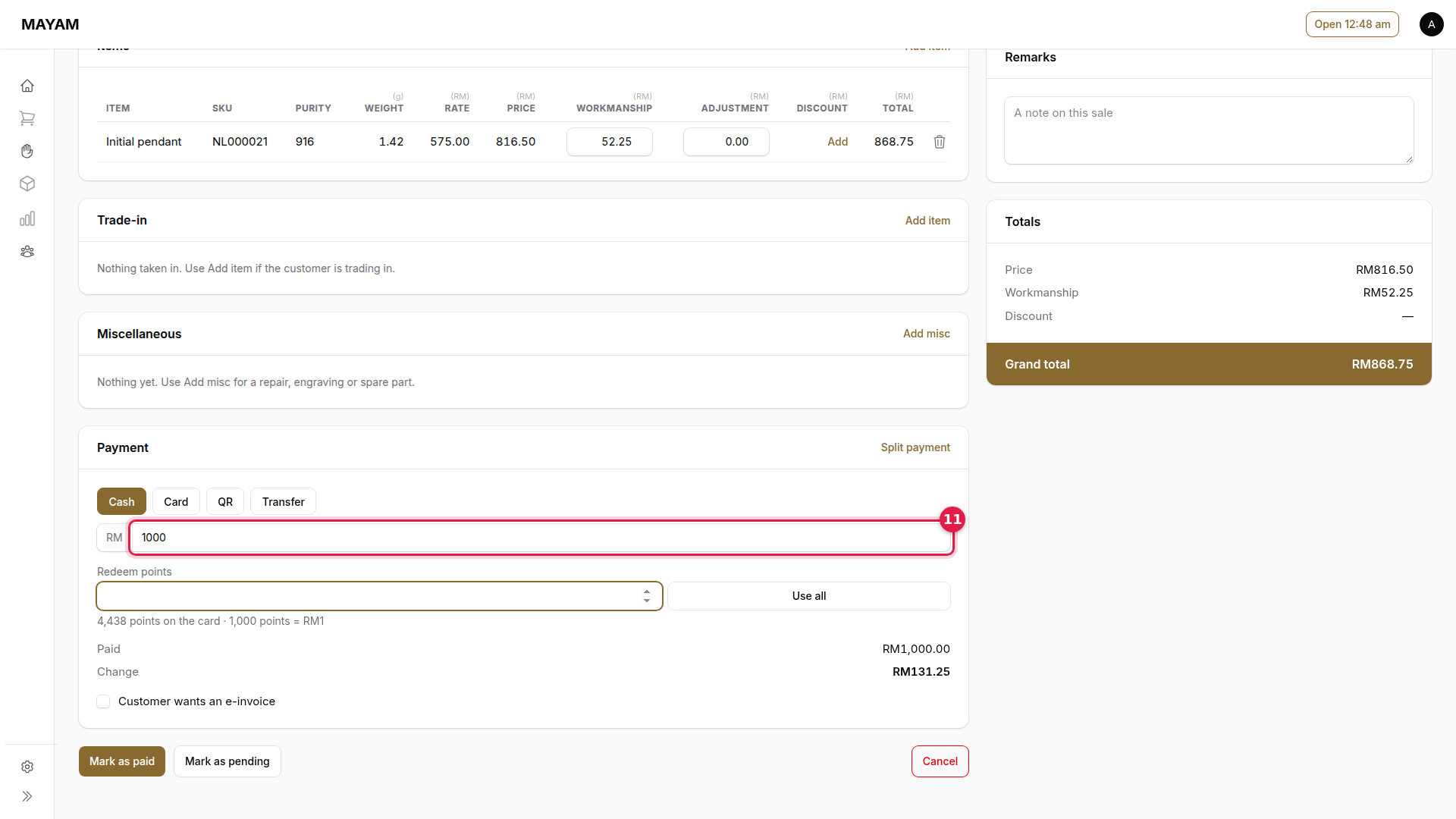
11. Key the amount received
For cash, Mayam shows the change to give. Tick Customer wants an e-invoice only when the customer asks for one.
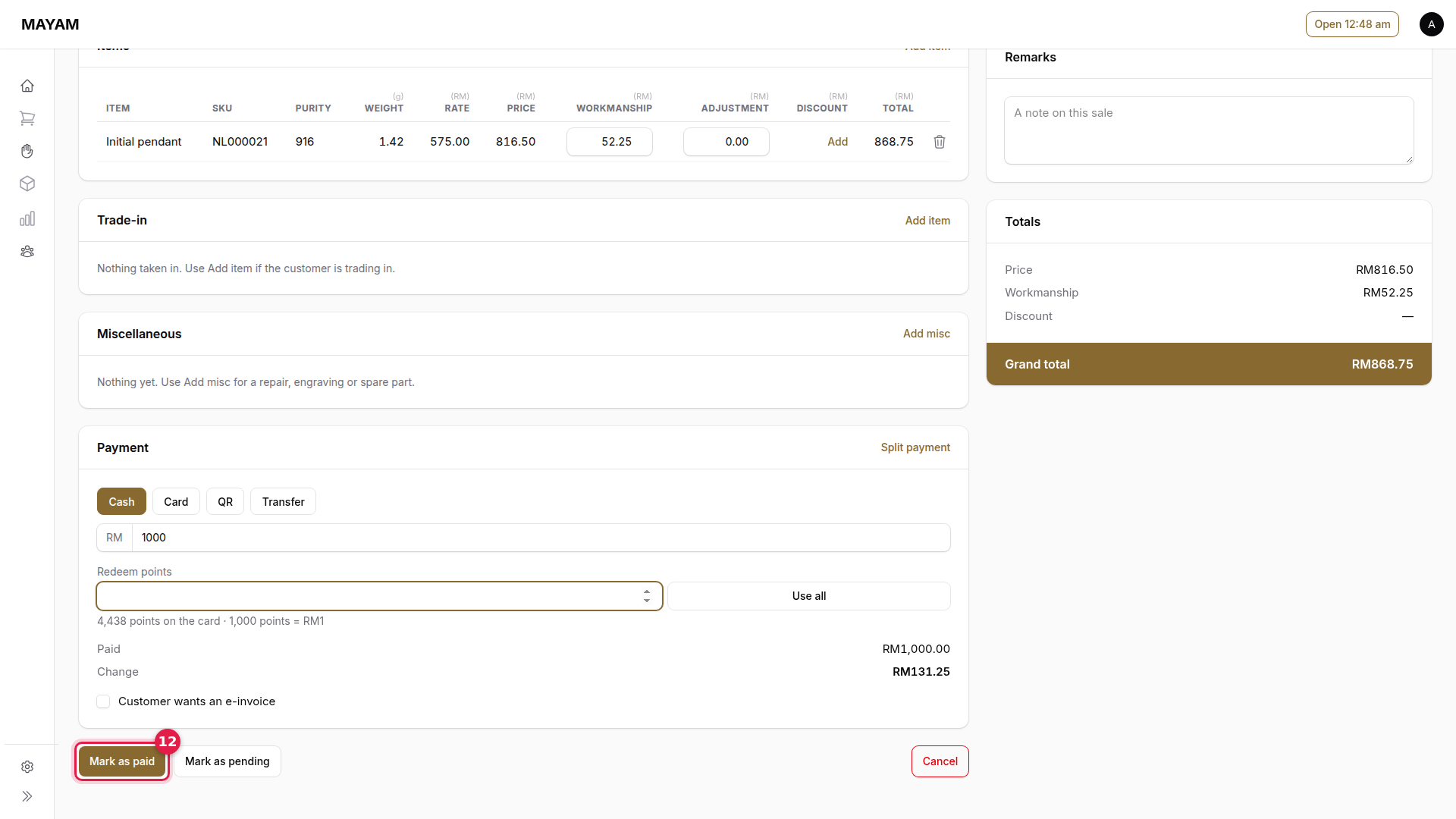
12. Press Mark as paid
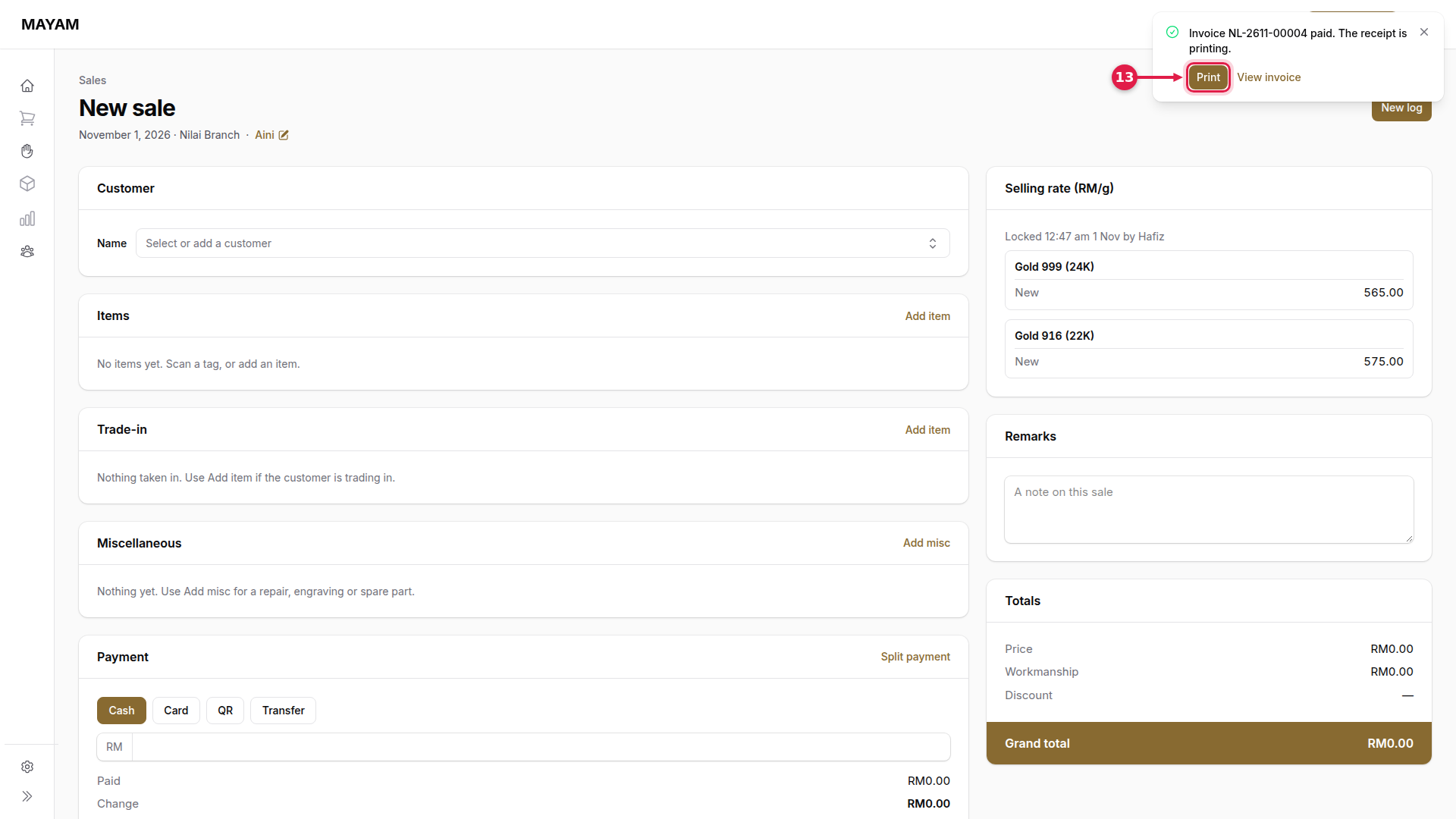
13. Press Print
Mayam confirms the invoice number. Print prints the receipt; View invoice opens it.
Good to know
- Mark as pending parks a sale and holds its pieces. Find it again under Sales → Pending.
- Cancel drops a sale that isn't paid yet; the pieces go back to stock.
- A paid sale can be corrected only by a manager, within 72 hours.