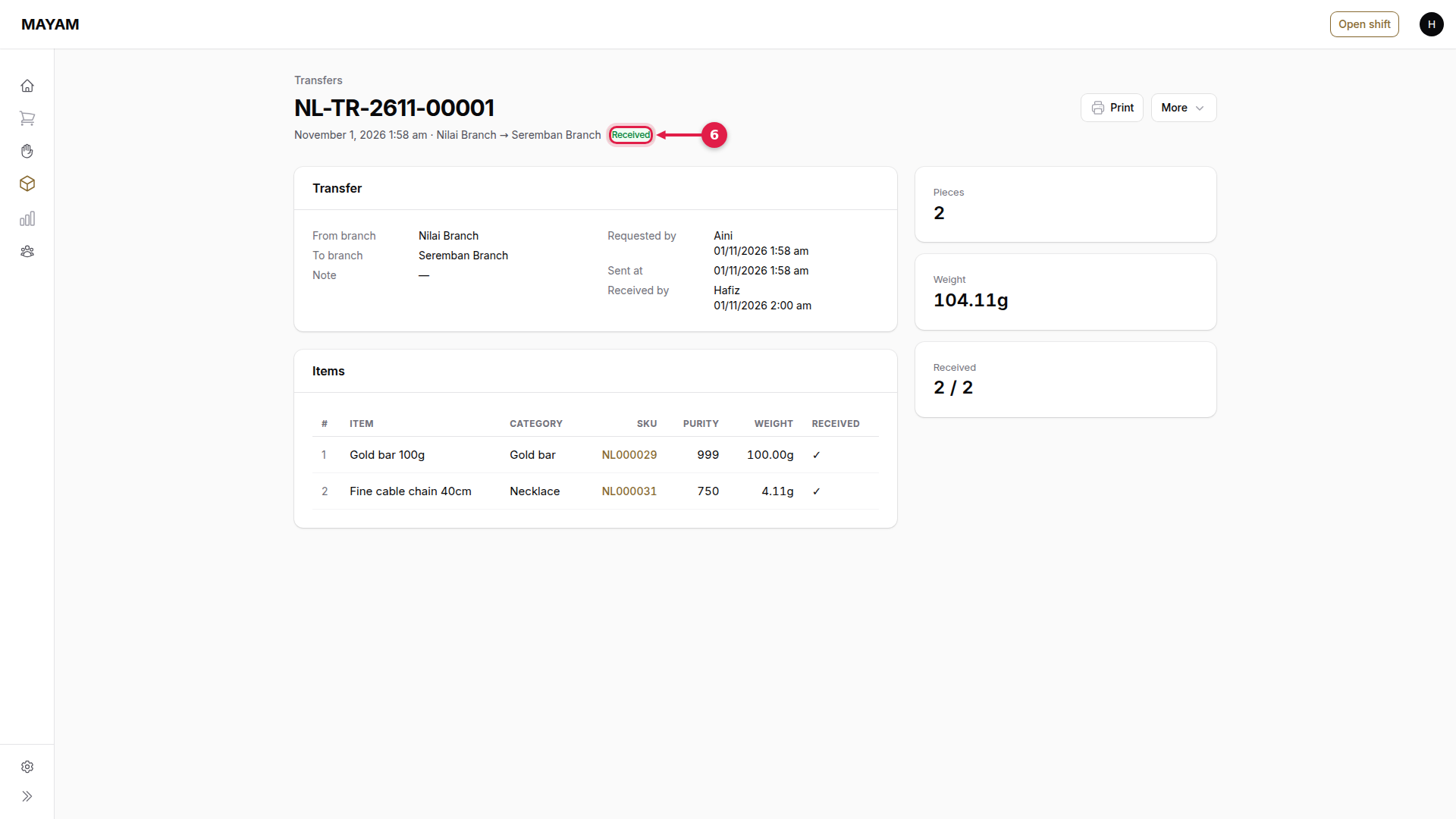
Receive a transfer
At the outlet receiving the pieces.
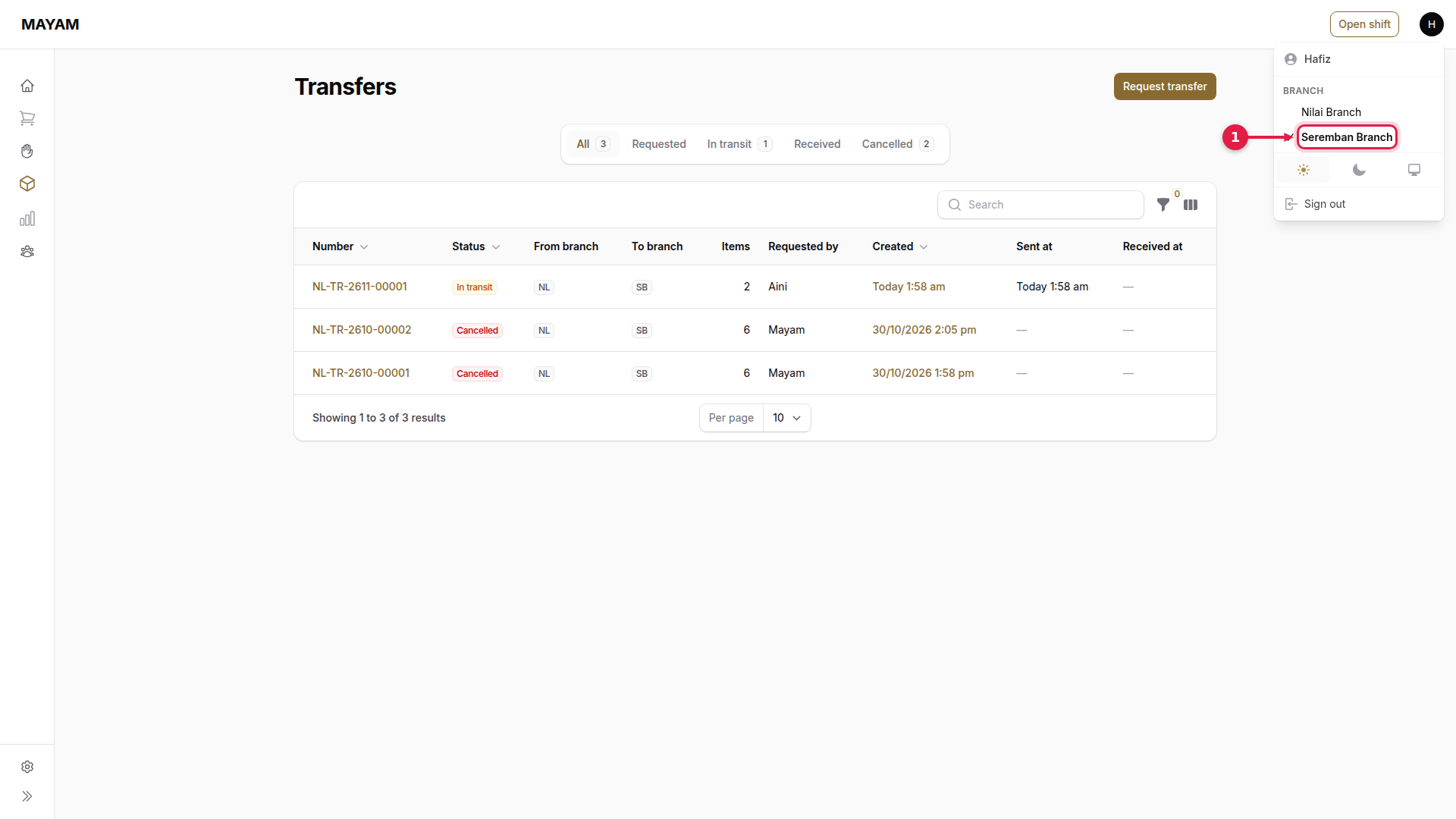
1. Check you are at the receiving outlet
If your login covers more than one outlet, choose it under Branch in the account menu (top right).
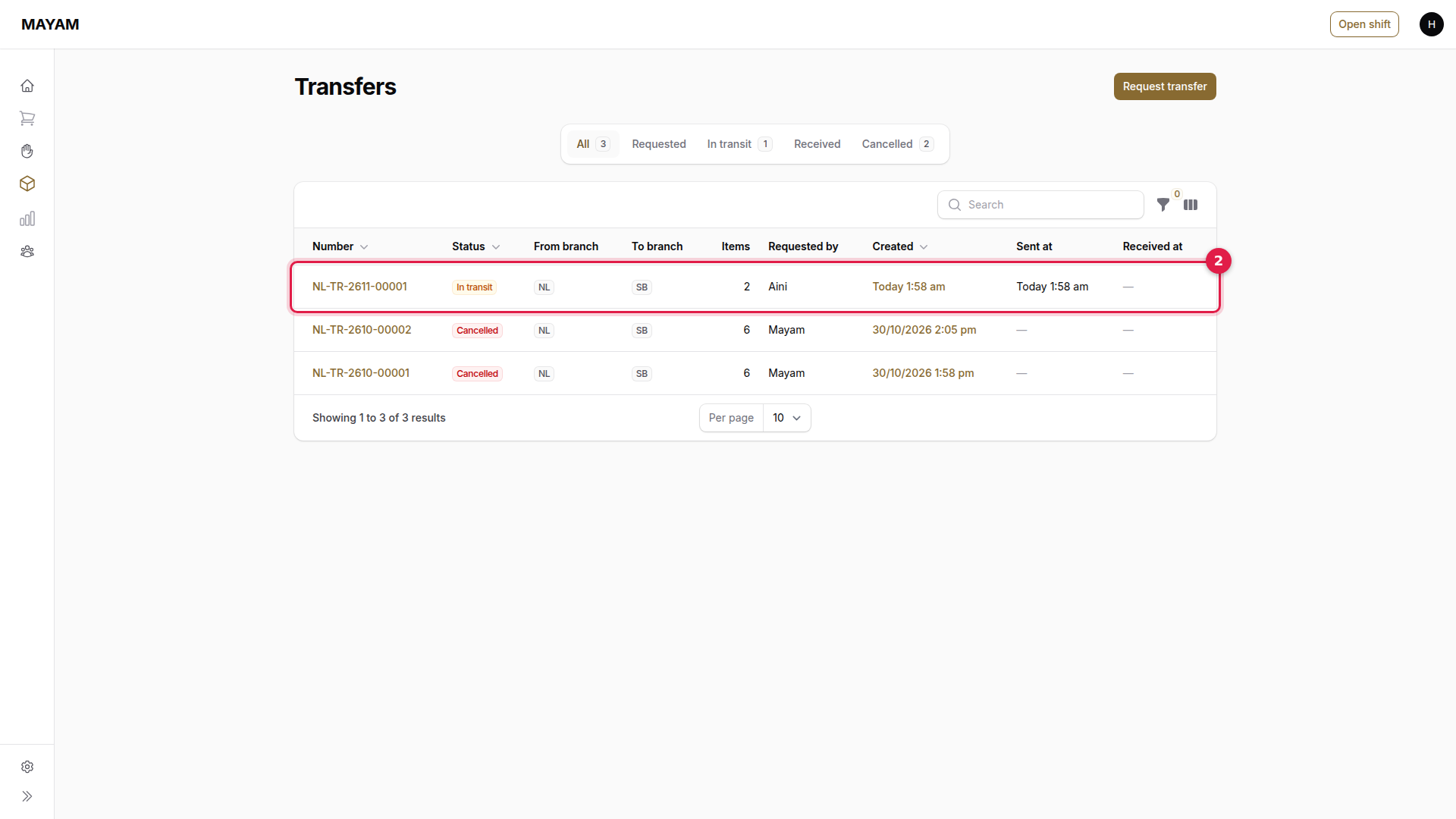
2. Open the transfer
Go to Inventory → Transfers and press the transfer marked In transit.
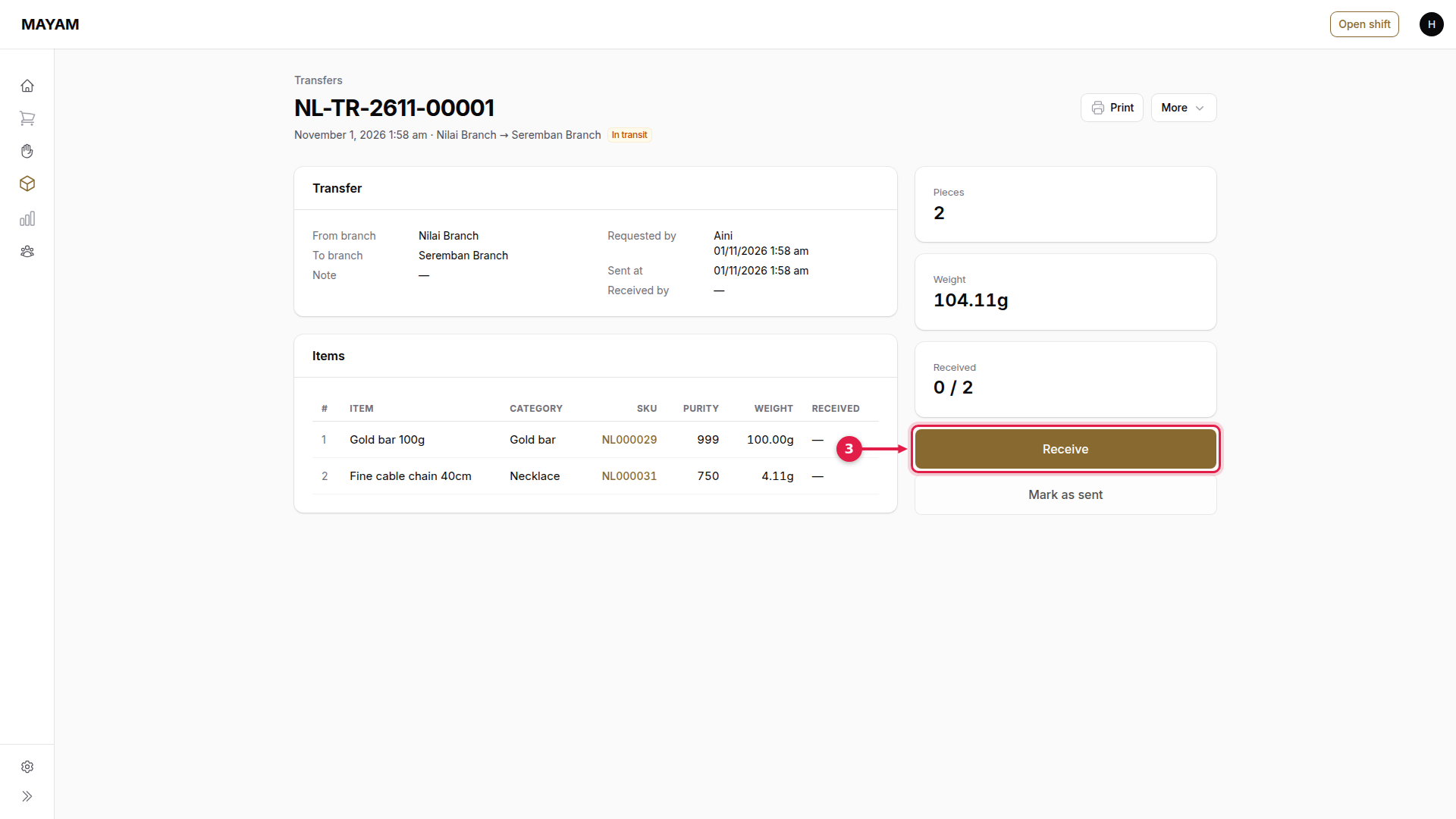
3. Press Receive
Check the pieces against the transfer sheet first.
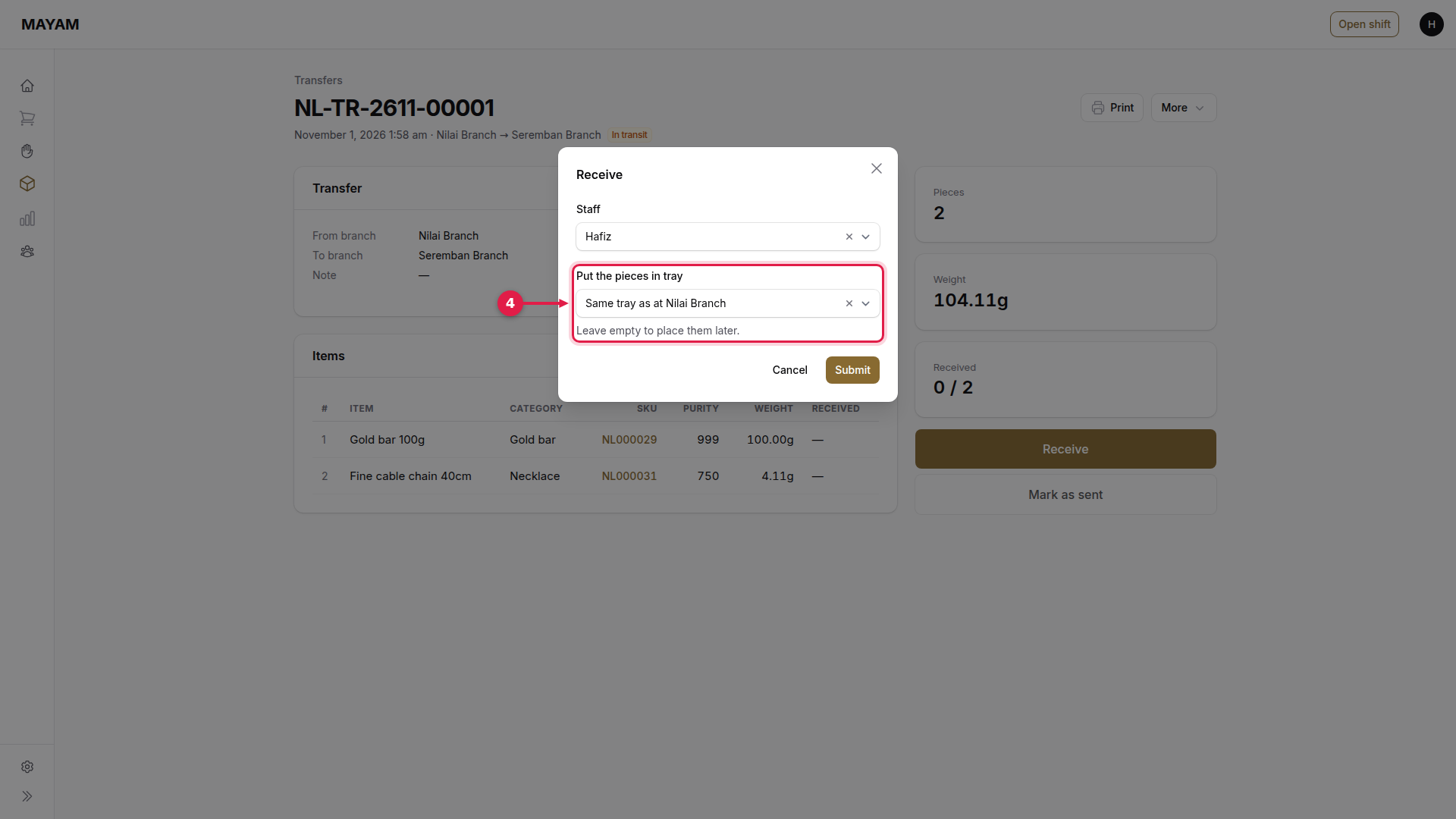
4. Choose the tray
The same tray code as at the sending outlet, unless you choose another.
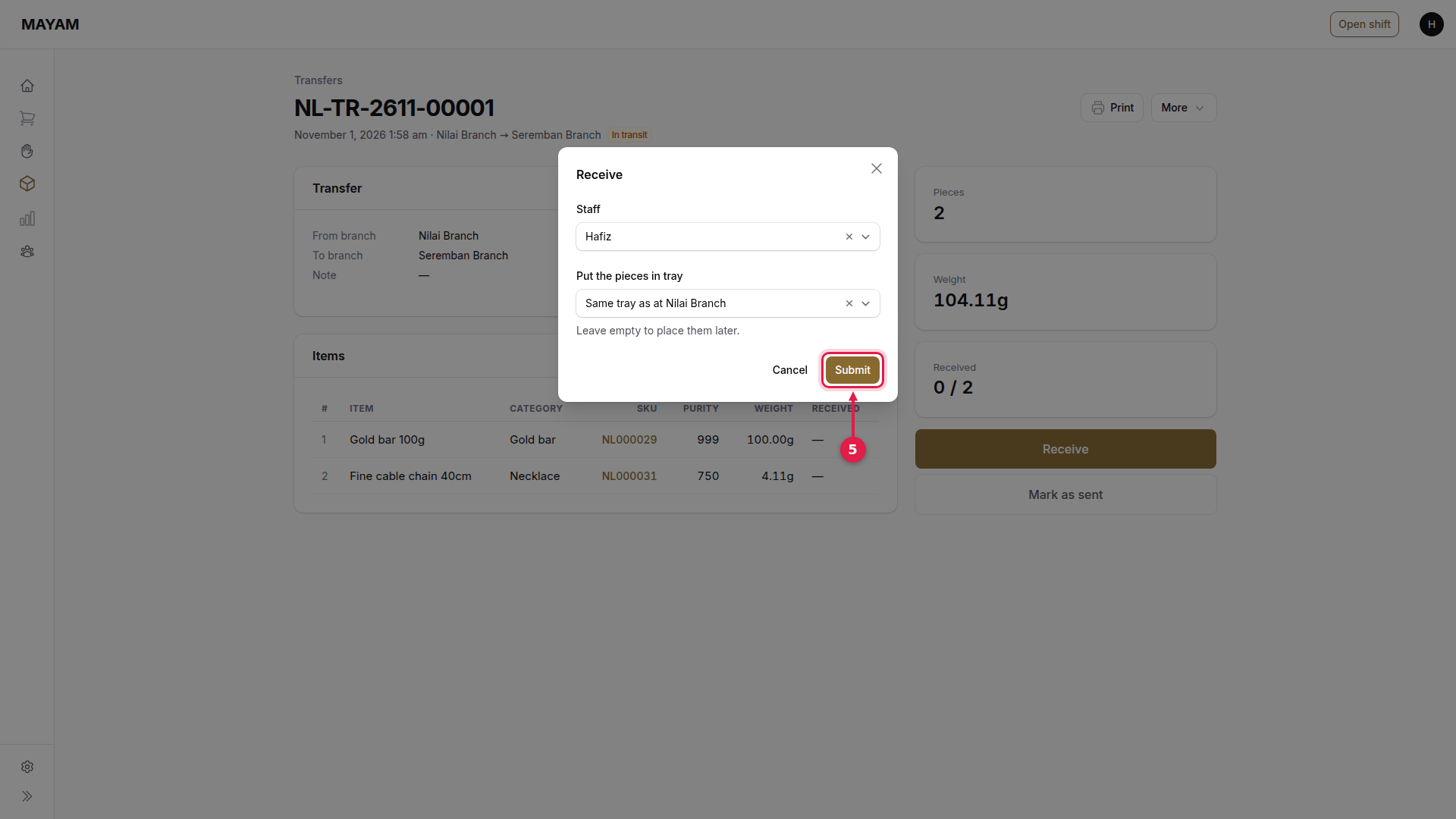
5. Press Submit
6. Check it says Received
The pieces are now in stock at this outlet.