Receive stock from a supplier
Key in the supplier's invoice, weigh each piece, and Mayam creates the pieces with new serials and prints their tags.
1. Press Inventory
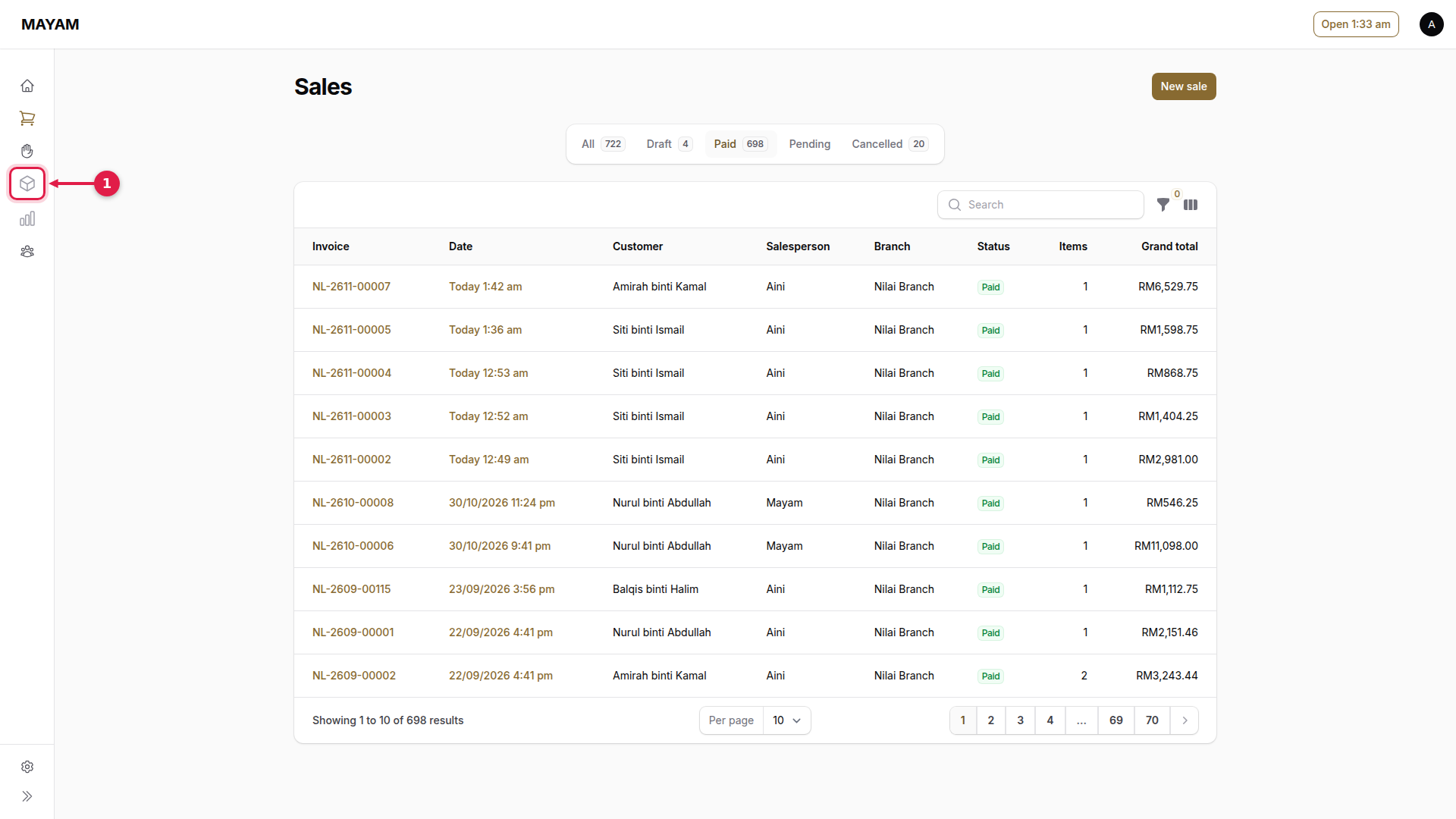
2. Press Invoices
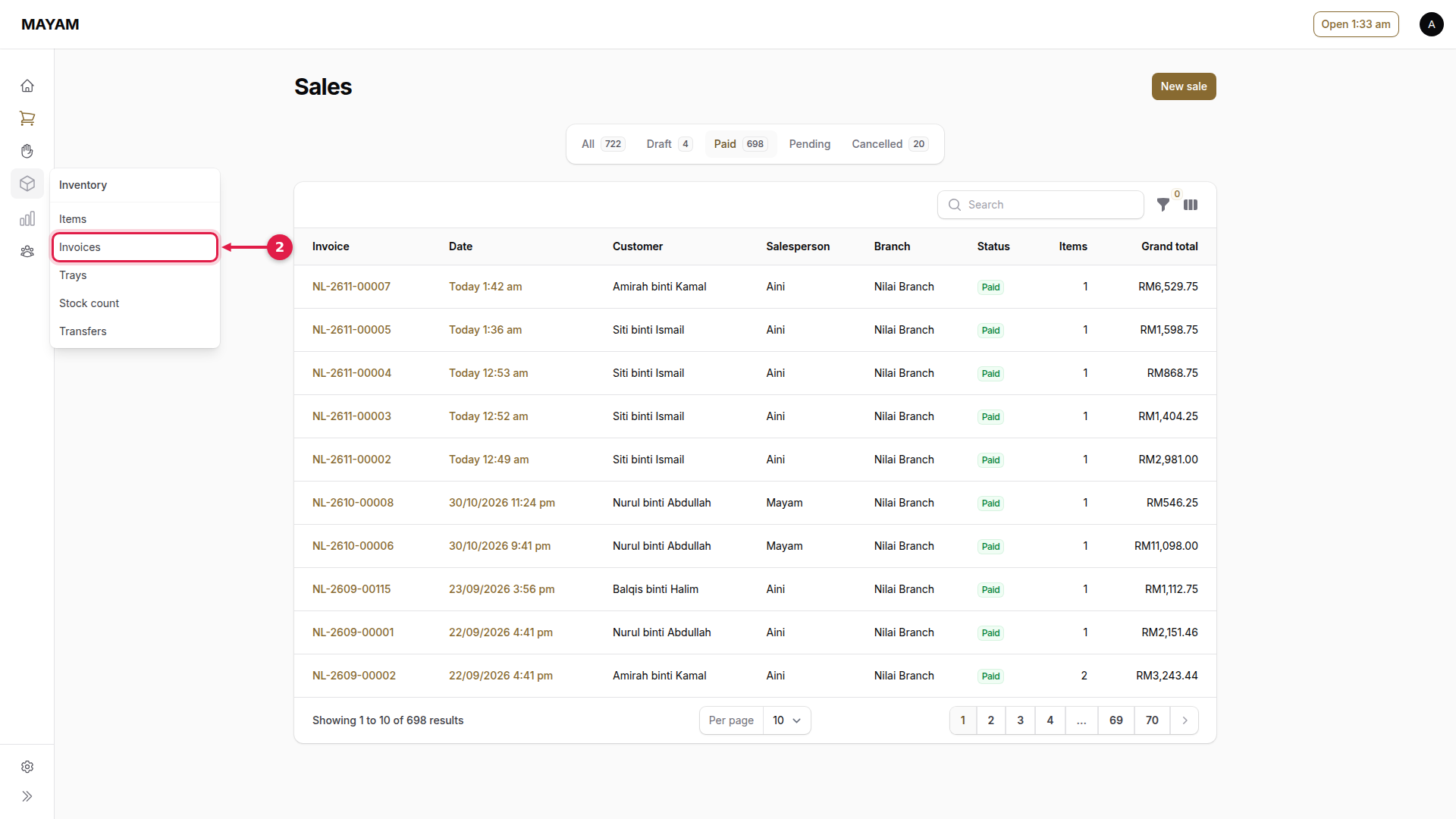
3. Press New invoice
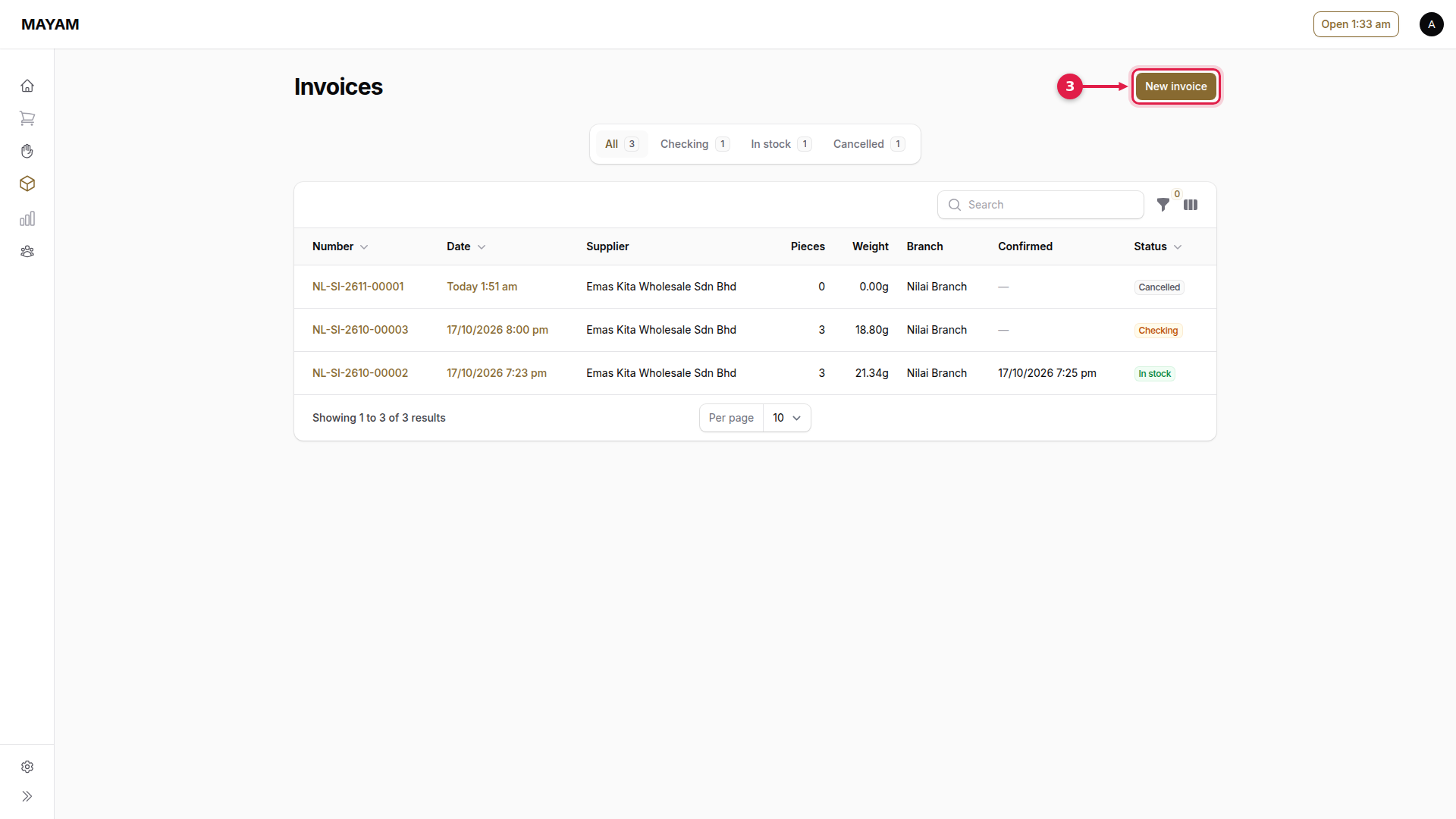
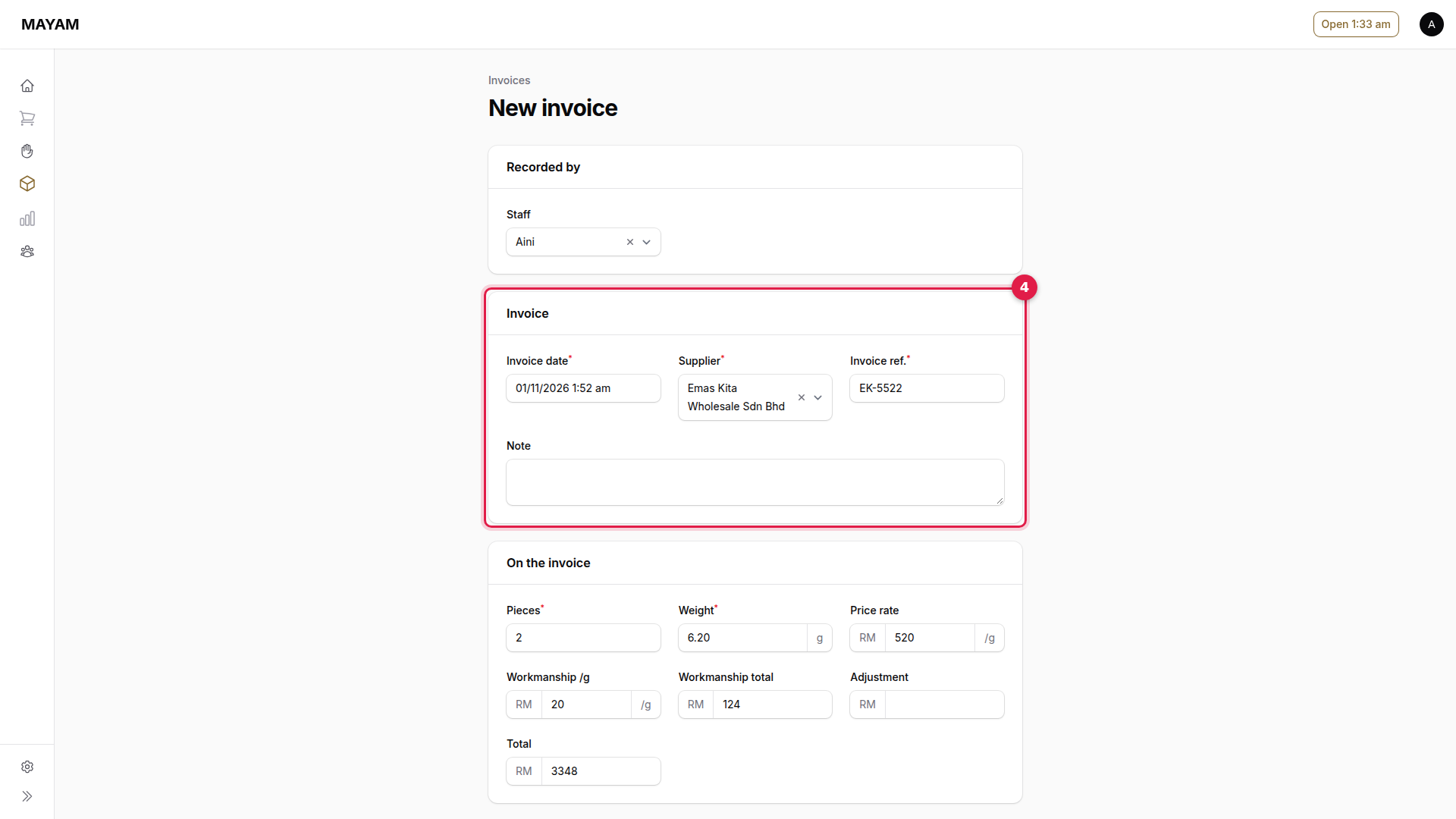
4. Fill in the invoice
Supplier, the supplier's Invoice ref. and its date.
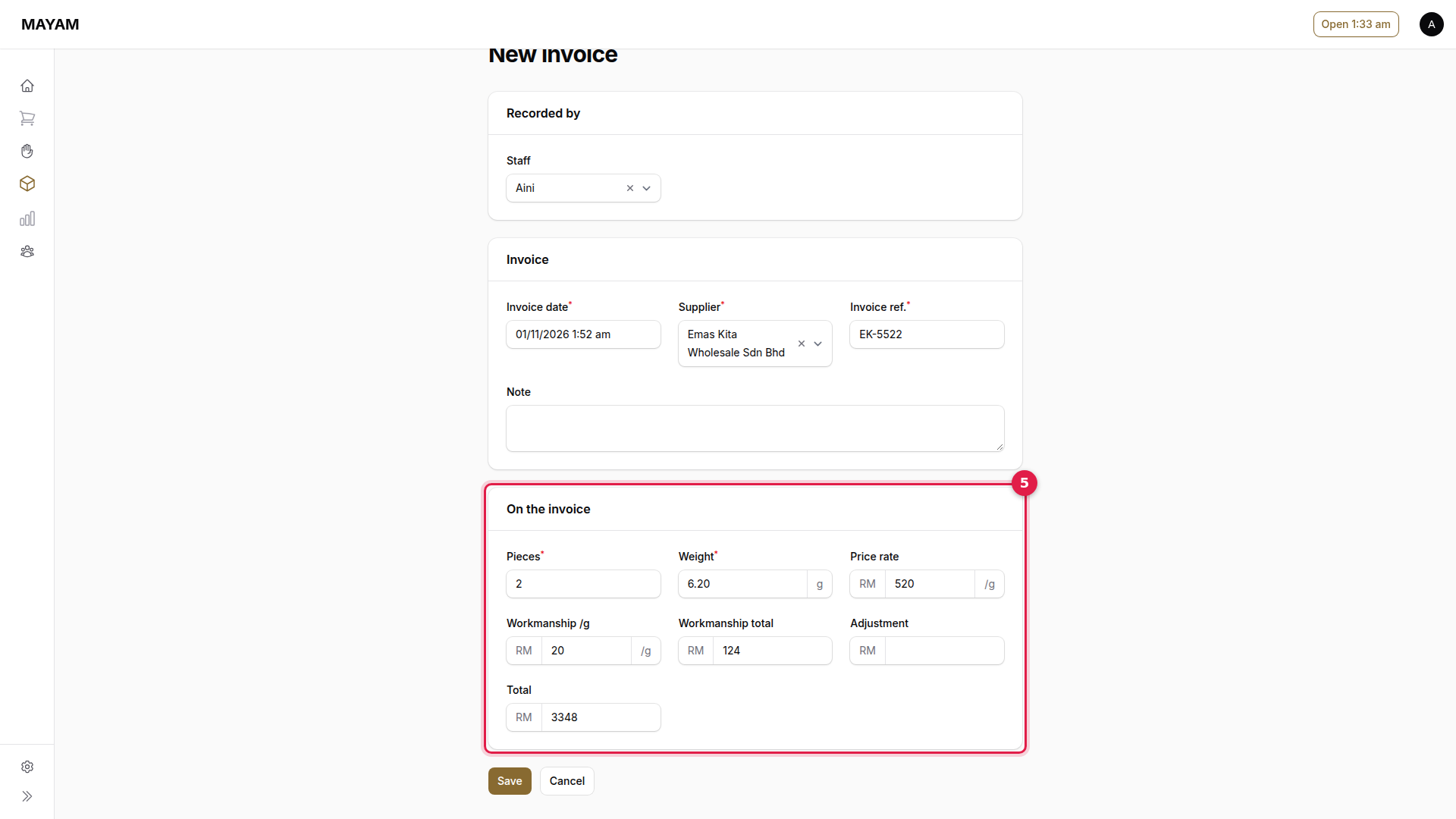
5. Copy the figures on the paper
Pieces, Weight, Price rate, Workmanship and Total, as printed on the supplier's invoice.
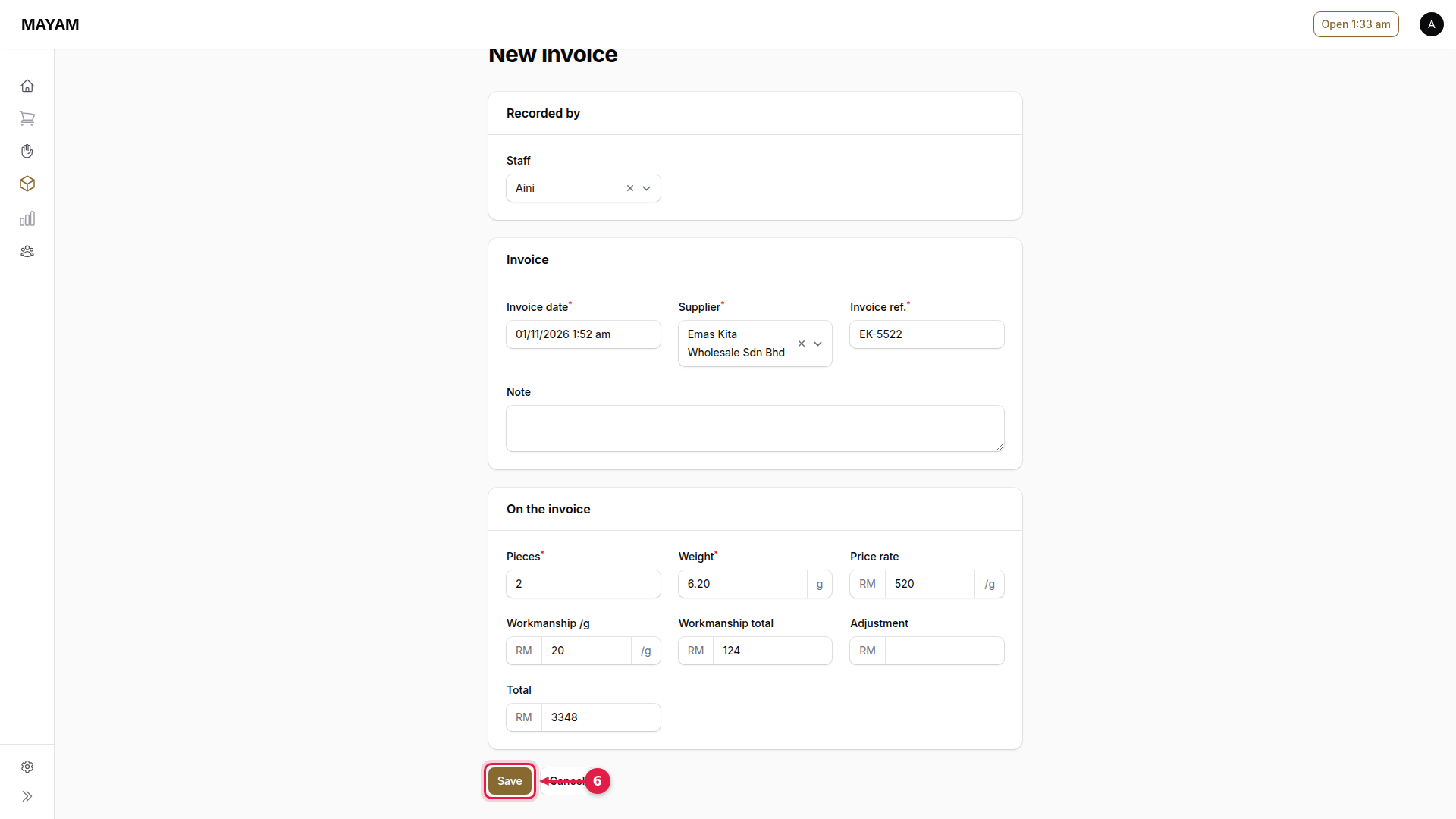
6. Press Save
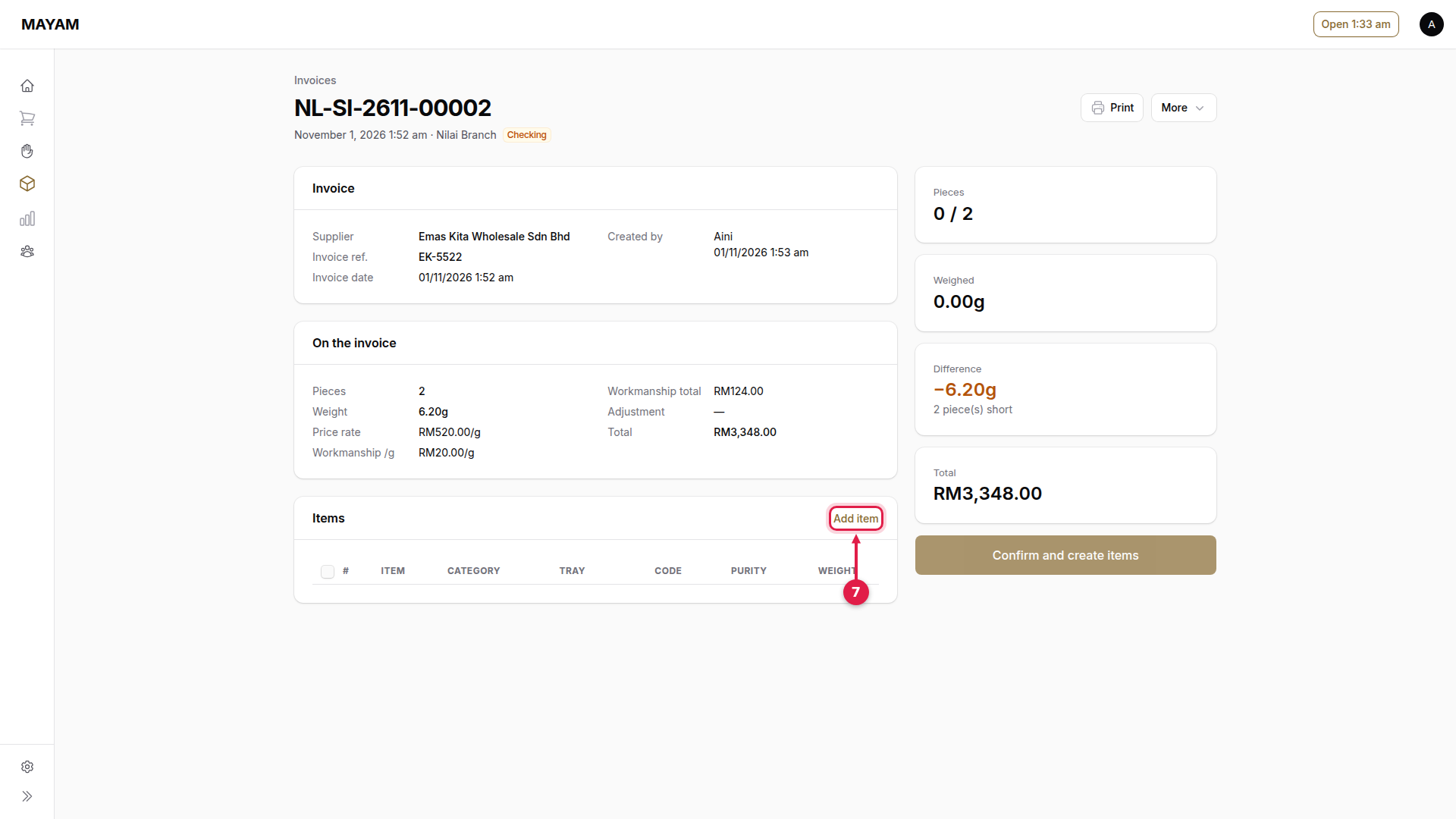
7. Press Add item
8. Choose the purity
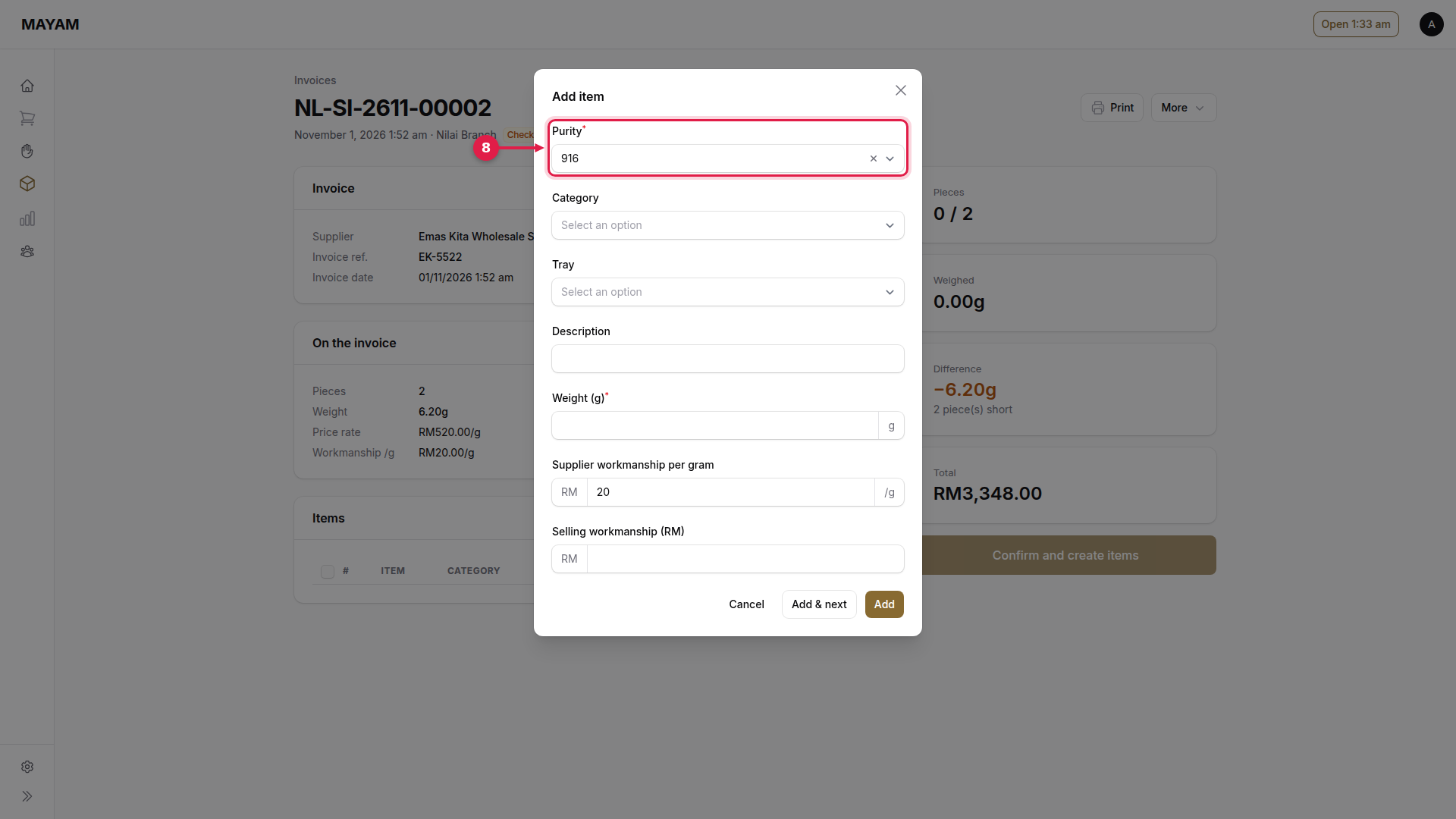
9. Choose the category
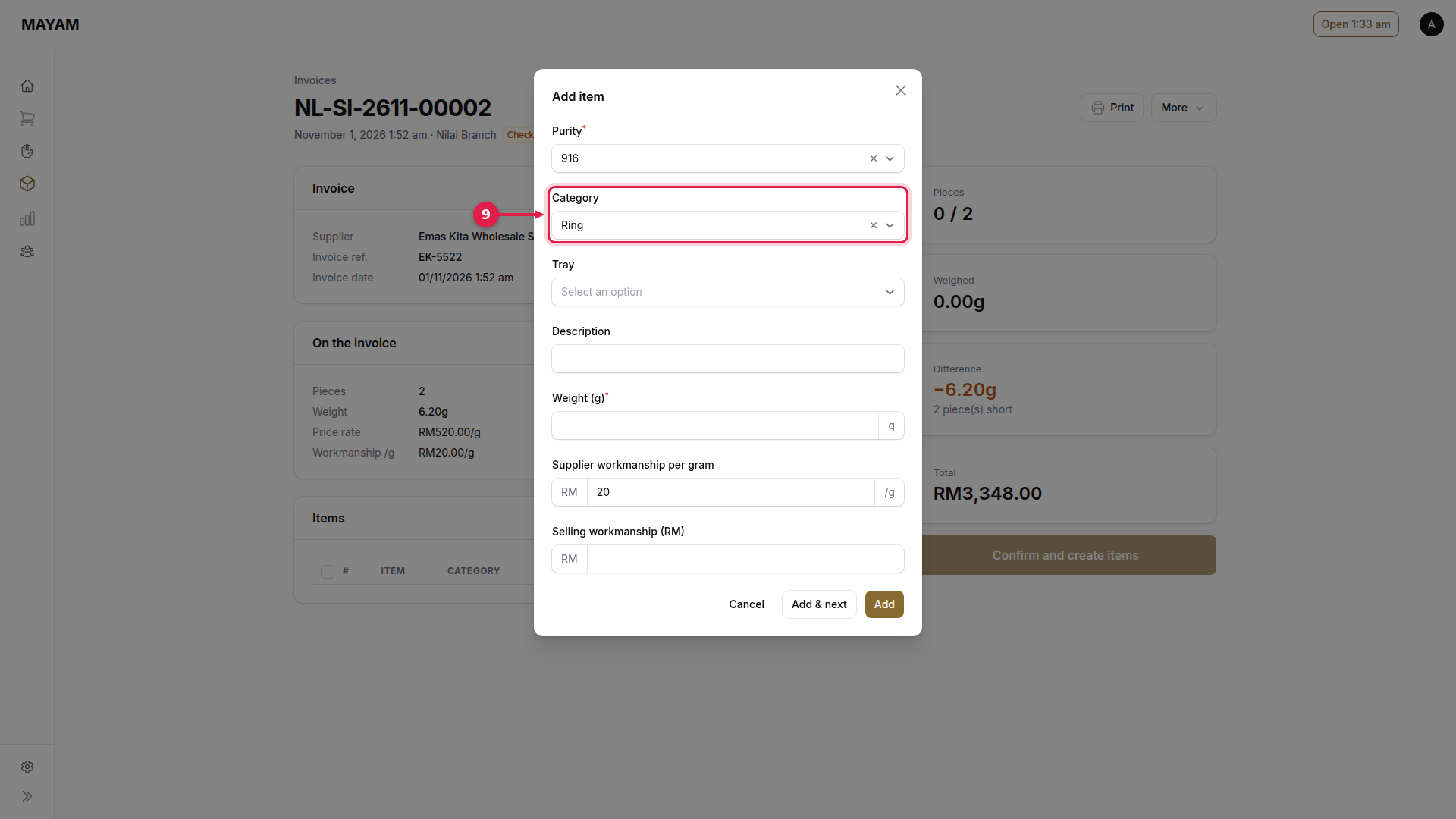
10. Choose the tray
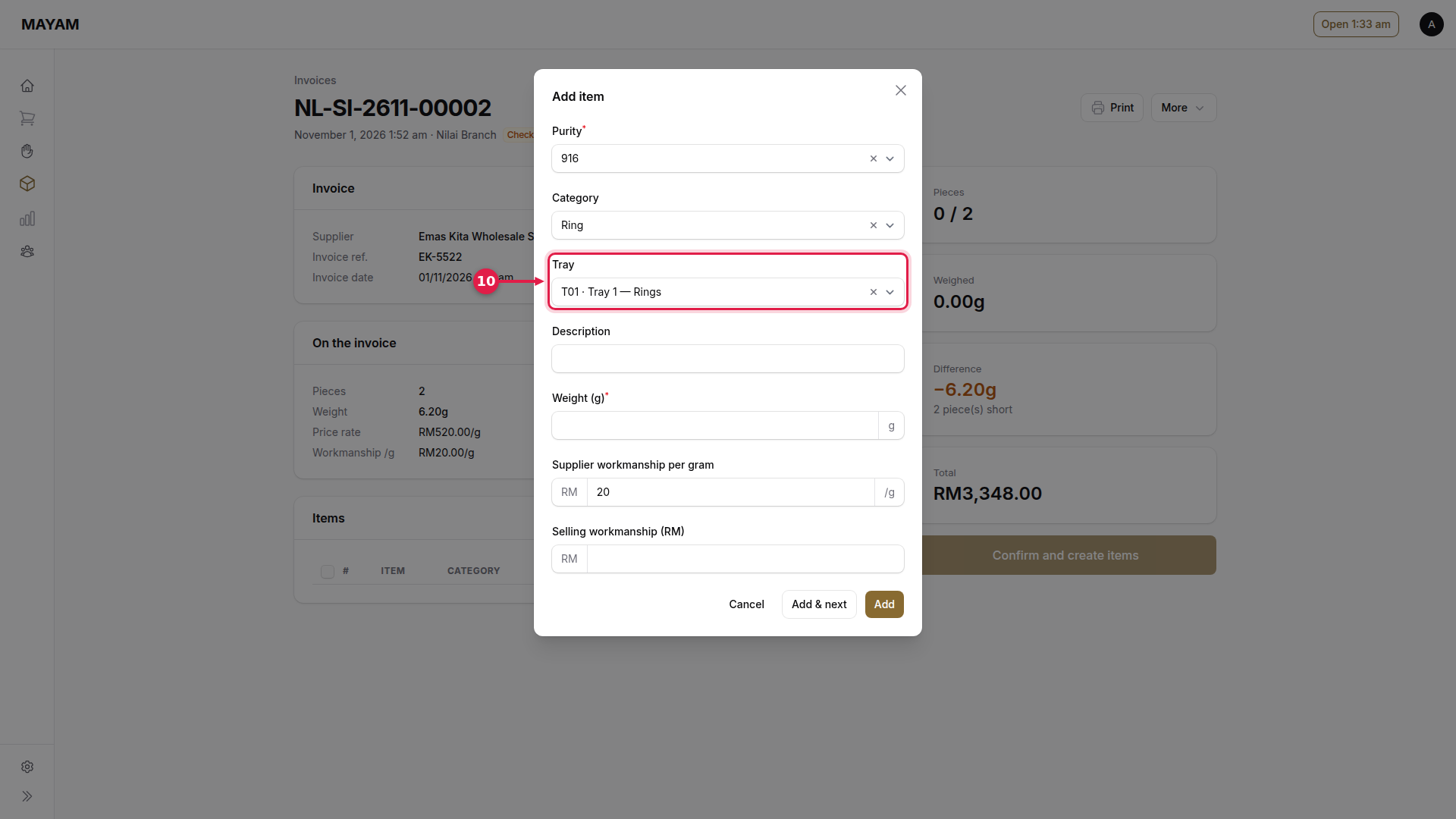
11. Key the description
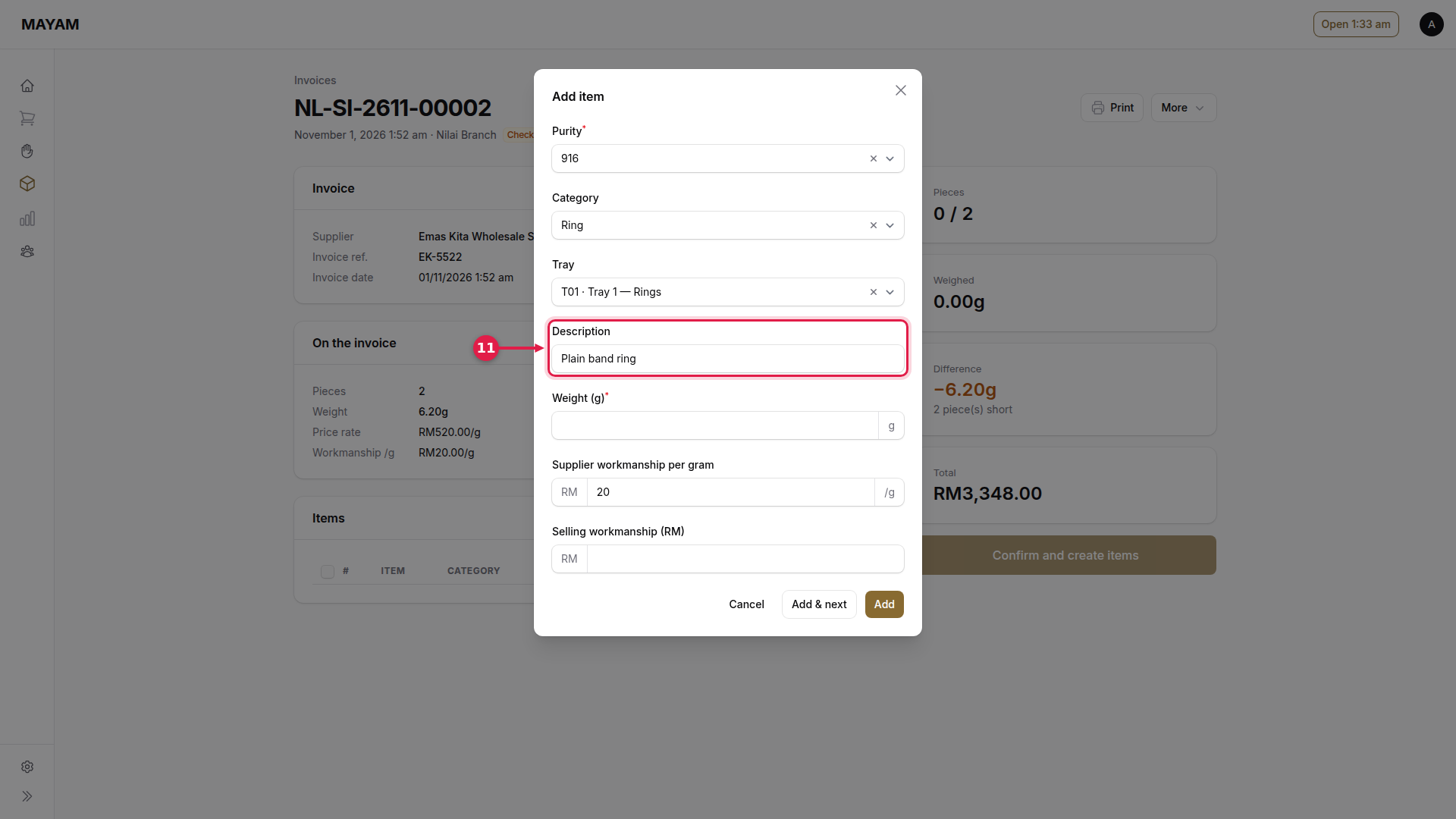
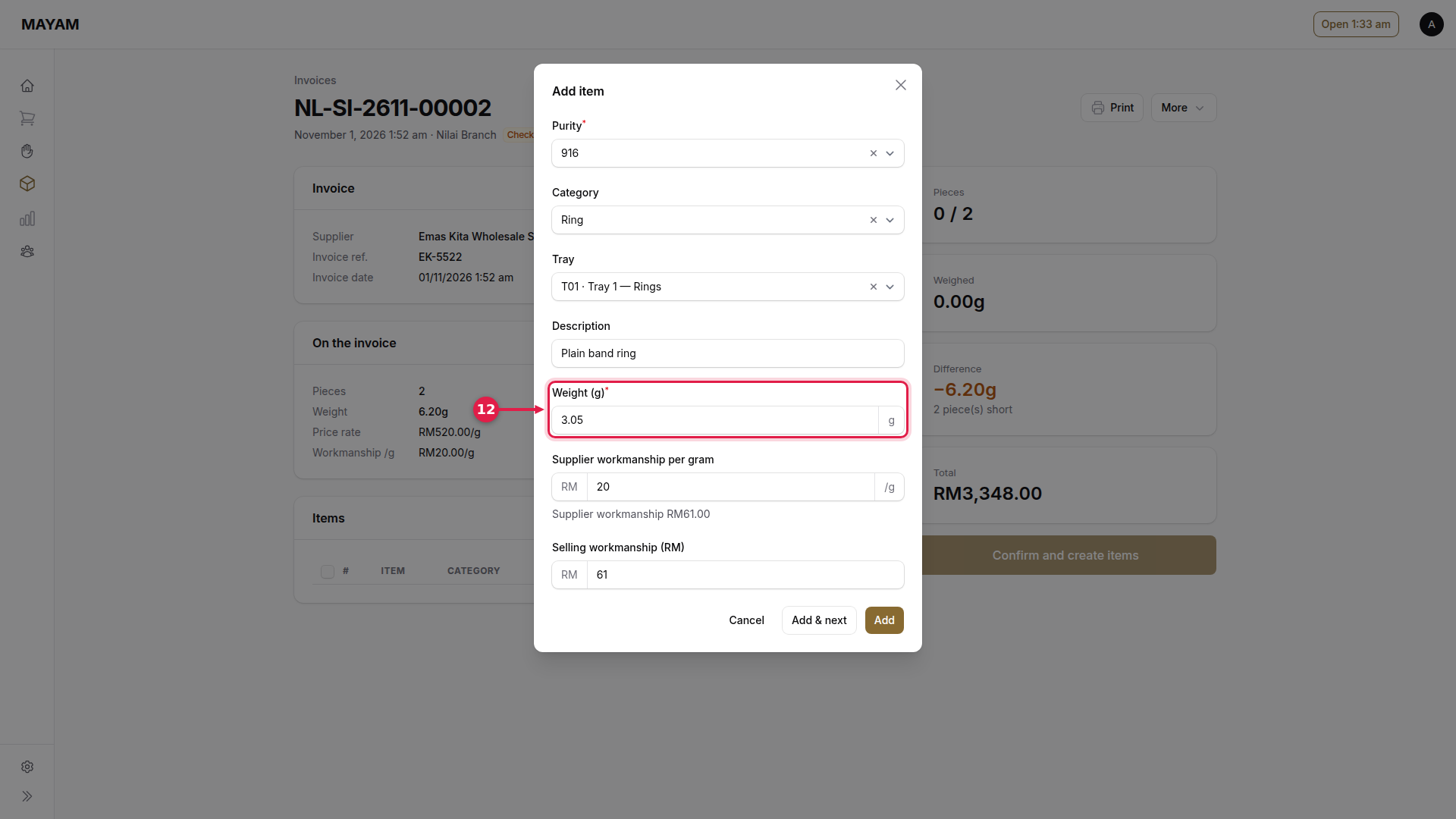
12. Key the weight
As shown on the scale.
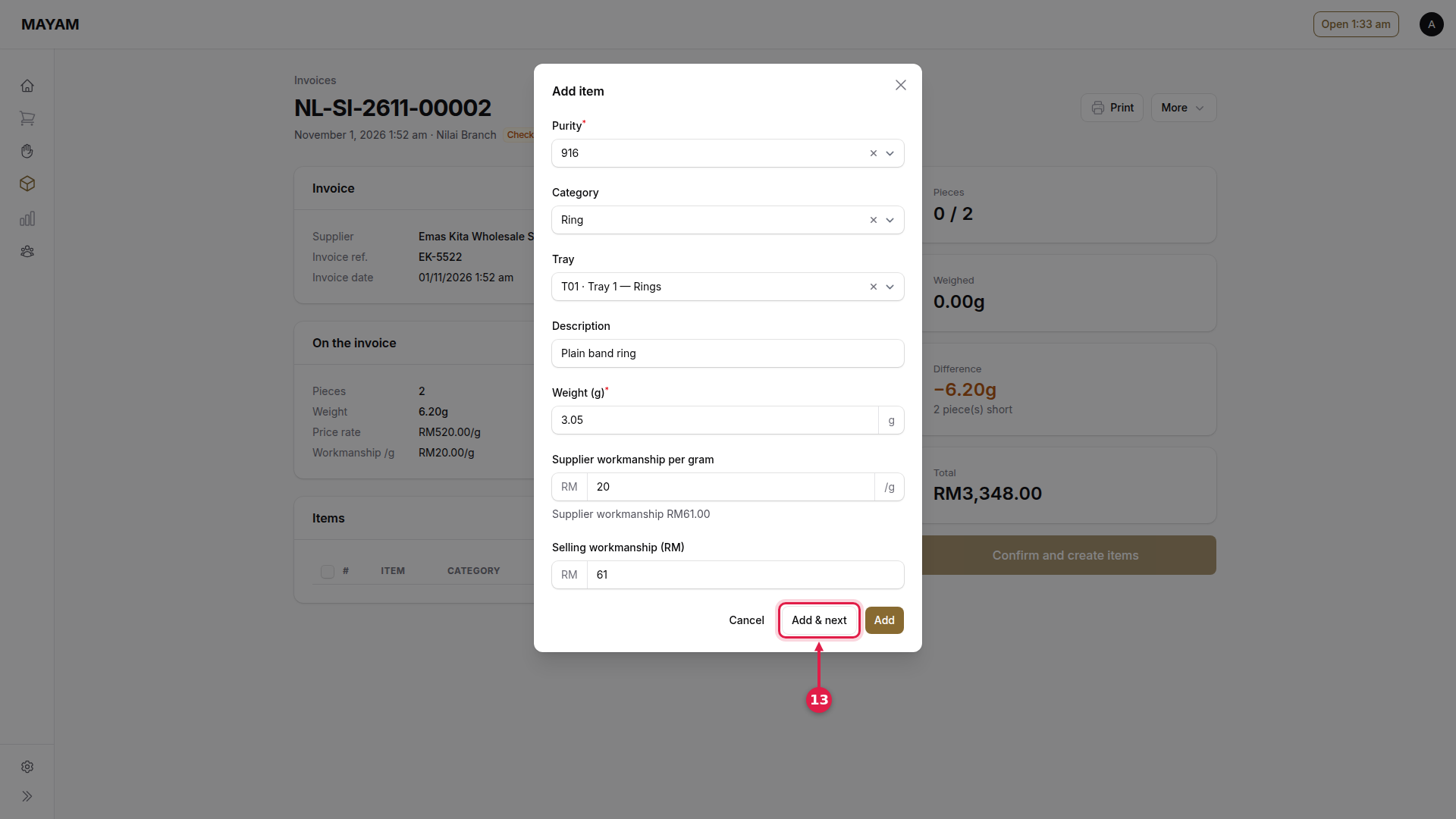
13. Press Add & next
For the next piece. Use Add for the last one.
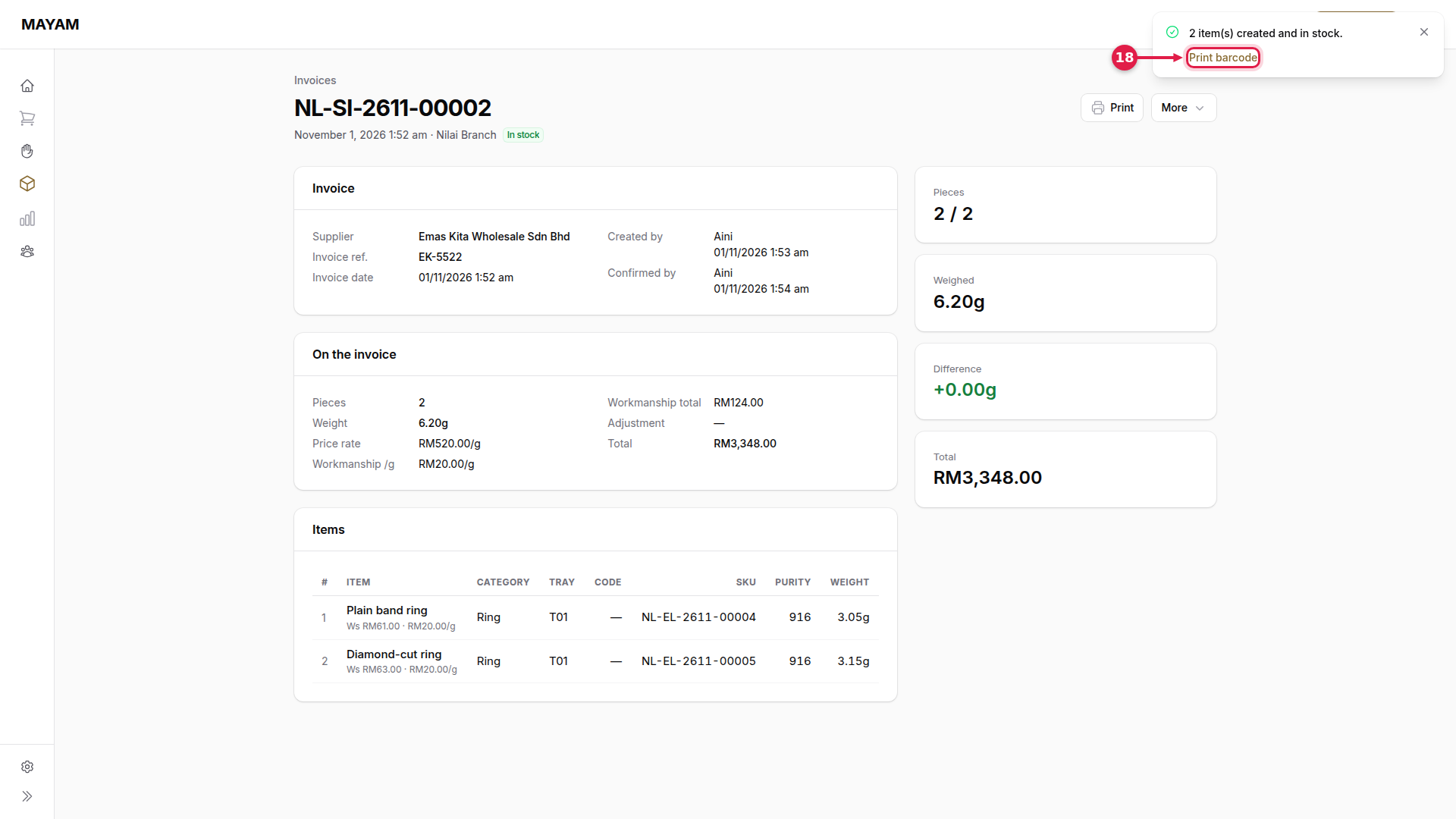
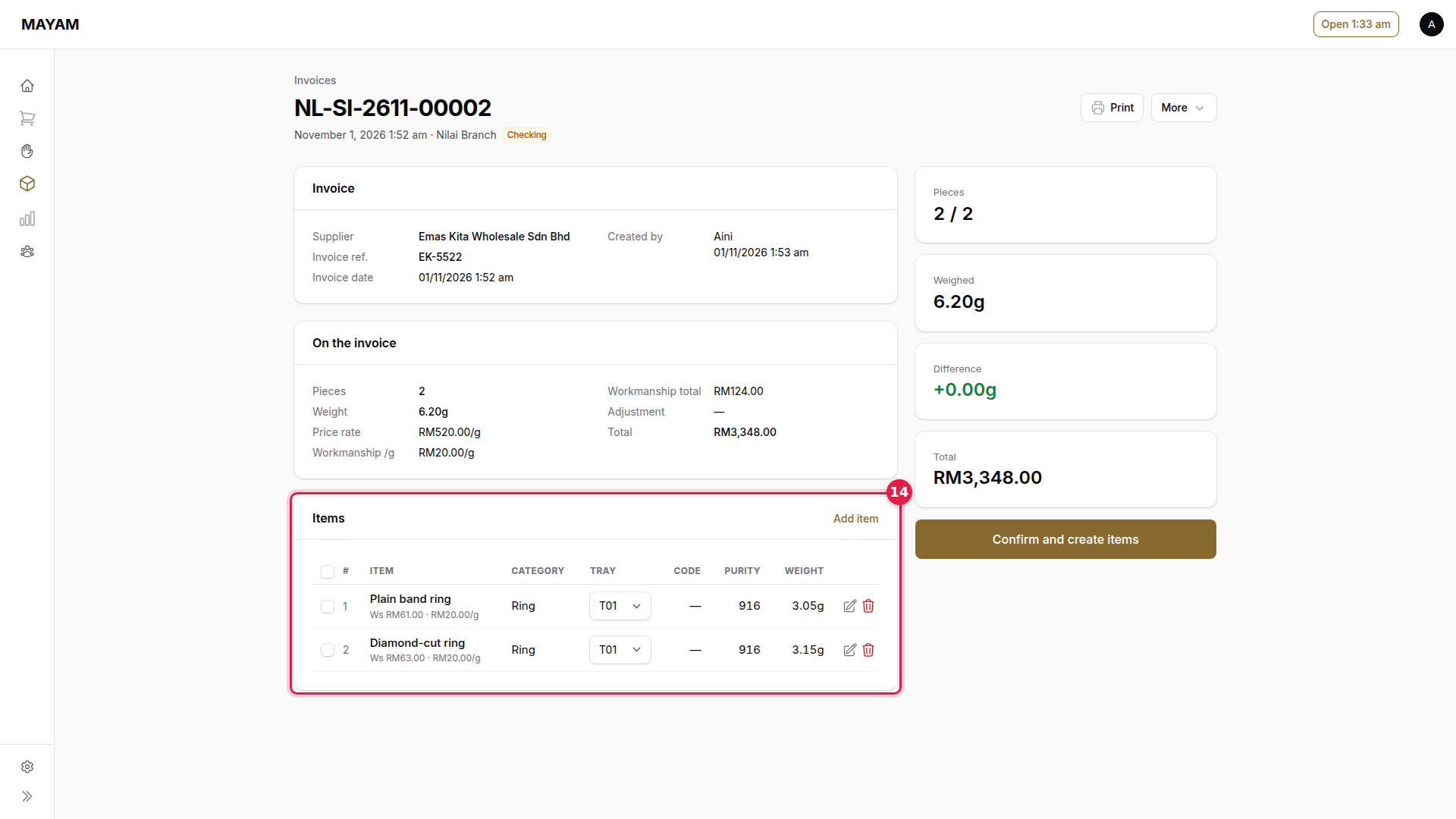
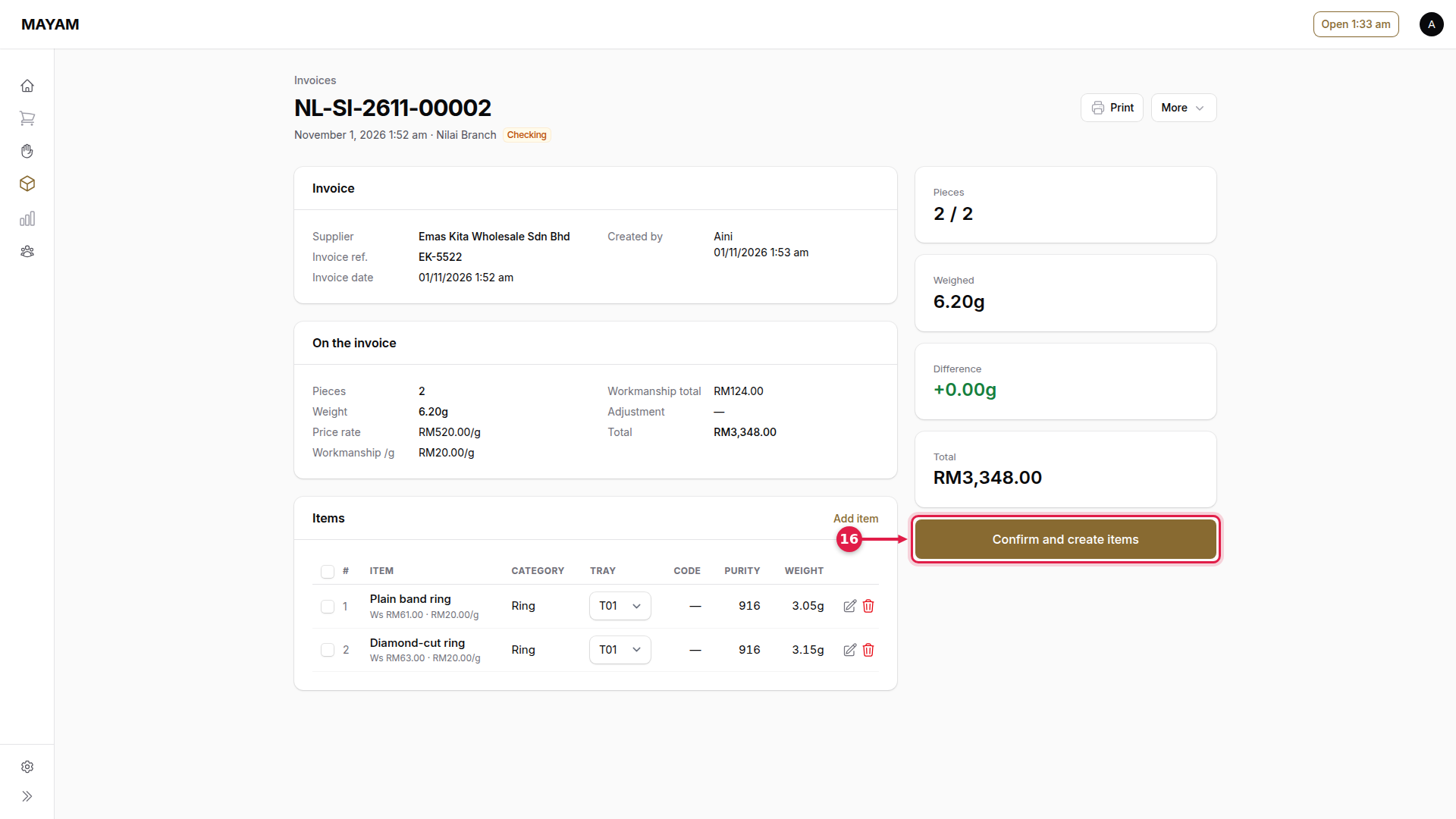
14. Check every piece is listed
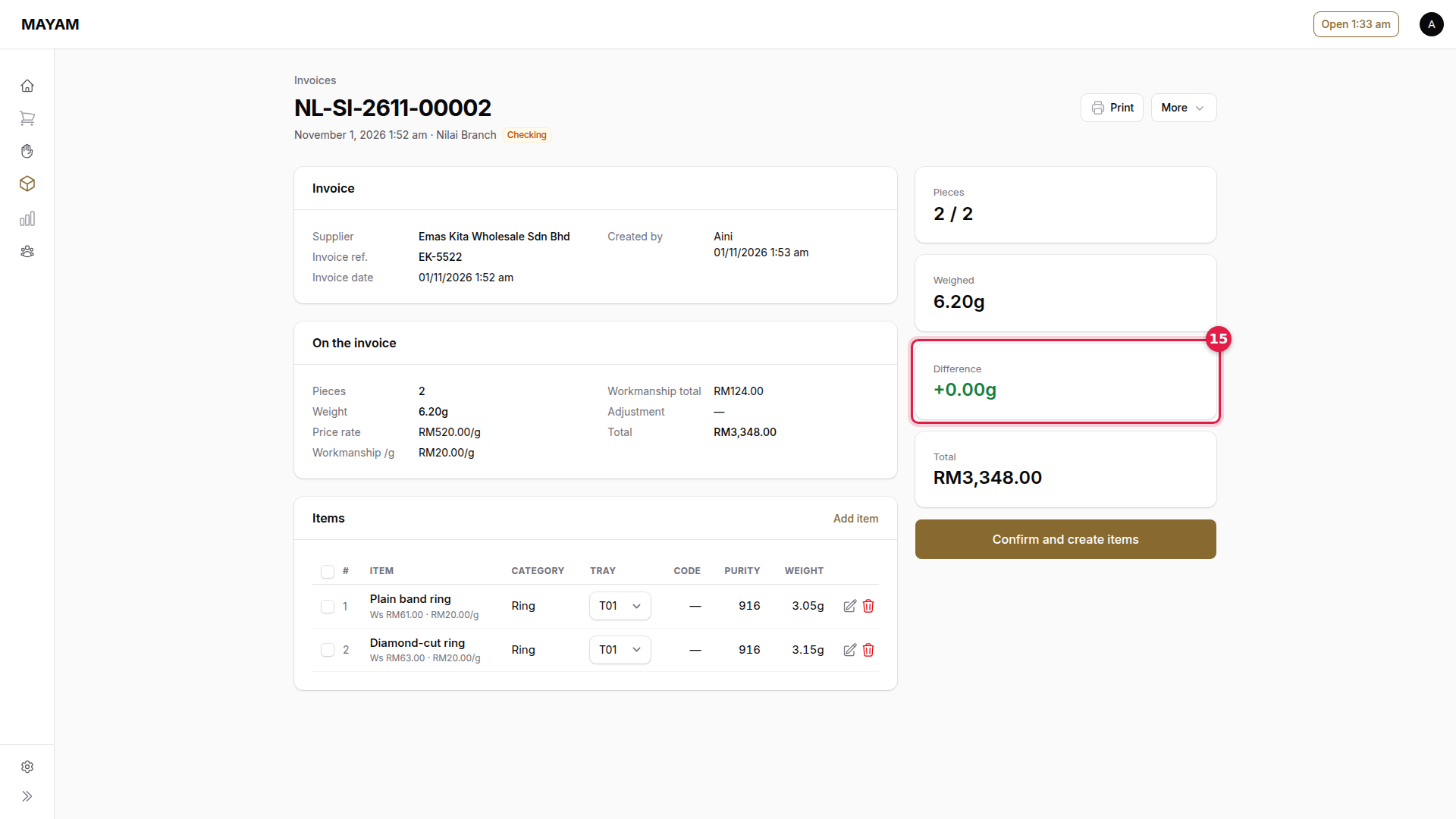
15. Check the difference
Pieces and weight should match the paper. A difference over the shop's tolerance needs a reason.
16. Press Confirm and create items
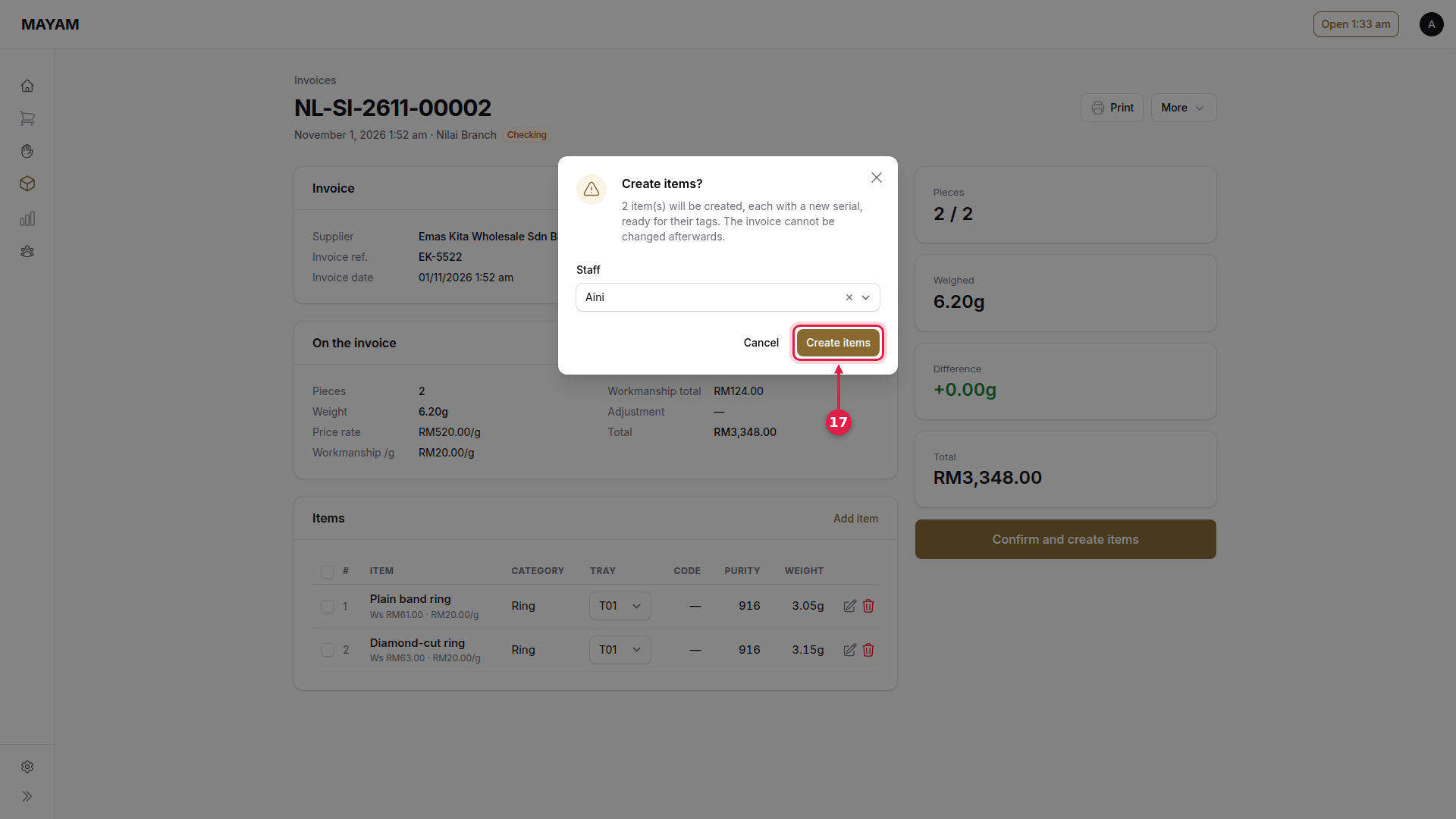
17. Press Create items
The invoice cannot be changed afterwards.
18. Press Print barcode
Prints a tag for each new piece. If your shop has Print barcodes when a supplier invoice is confirmed on (Settings → Receipt), the tags print by themselves after step 17; press Print barcode only to print them again.